
With Odoo 20, Field Service is no longer a separate application: its functions now live in Planning. Scheduling an intervention, assigning it to a technician, tracking its progress, and invoicing it all happen in the same place. Result: faster dispatch, more reliable planning, and field teams saving time every day.
For maintenance, installation, or repair companies, the change is twofold. On a daily basis, the dispatcher and technicians work within a single logic. On the project side, a base that already uses Field Service must prepare its migration carefully, as interventions change nature in Odoo. The professions we support in our projects of ERP for on-site service, from heating, ventilation, and air conditioning to facility management, are the first concerned.
Here’s what changes for the dispatcher, for the technician, and for your budget, then the points to check before migrating.
01Field Service integrated into Planning: a single application
No more back and forth between two applications. In Odoo 20, an intervention is a planning slot that carries everything needed: client, address, phone, priority, intervention sheet, and related purchase order.
- One status for everyone : Draft, Planned, In Progress, Completed.
- Everything is activated in Planning (Configuration > Settings) : Field Service, intervention sheets, client report, geolocation, equipment, stock by vehicle.
- Multiple technicians and equipment on the same intervention: they share the same slot instead of a copy per person, with a time calculated according to the size of the team.
- Priority of interventions : each intervention receives a priority, from low to urgent, and the automatic scheduling first handles the most urgent.
For the user, it is a much simpler experience: one place, one logic. For the company, it also marks the end of an artificial boundary between the scheduling of internal teams and that of interventions at the client.
02Schedule interventions by drag-and-drop
The Gantt view of the schedule displays on the right a panel with the interventions to schedule, and their number. Just drag one onto a technician's line, at the right time: it is scheduled, and their vehicle is added automatically.
- Day view to the quarter hour : the travel time is displayed before each intervention (departure, duration, distance).
- Dependencies that follow : move a task, the linked tasks are rescheduled, with a Cancel button.
- Multiple creation : select multiple lines or an entire day to create multiple slots at once.
- Sending the schedule by email or WhatsApp : technicians receive their slots published on the chosen channel (WhatsApp requires a WhatsApp Business account and approved message templates).
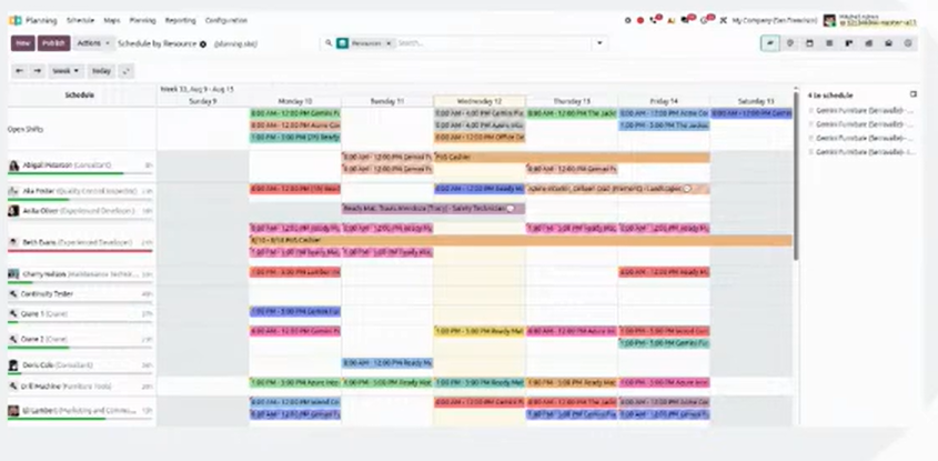
Source : Odoo video « The new Field Service flow in Planning »
Odoo presents this new flow in video, from the panel of interventions to be scheduled to the closure by the technician.
Odoo demonstration of the new Field Service flow in the Odoo 20 Planning application
03Technicians and equipment: complete control over your resources
Planning now manages your technicians and your equipment together, for a schedule you can truly rely on.
- Equipment linked to people : vans, machines, or rooms can be assigned to an employee. When scheduled, their equipment follows automatically.
- Employee and Equipment Filters : you see at a glance who and what is available.
- Flexible schedules : hours are calculated by day and by week.
- Accurate field tracking : the Start and Finish buttons record the GPS position, and a live map shows where your technicians are during their working hours.
- Recurring contracts : a confirmed subscription automatically creates a slot to be scheduled for each period.
- Client equipment history : each intervention lists the client's equipment, and the sheet of a piece of equipment provides access to all past interventions on that machine.
04From dispatch to billing: the journey of an intervention
The dispatcher has all the information at hand and the technicians know exactly where to go. Here is the complete journey of an intervention in the planning of interventions of Odoo 20.
| Step | What Odoo 20 does |
|---|---|
Request | The client fills out a form on your site, or support schedules the intervention from a Helpdesk ticket. The request goes directly into Planning. |
Planning | Drag-and-drop from the sidebar, or automatic scheduling that takes into account priority and the client's address. |
| Dispatch | Intervention sheet in one click: dates, client, address, phone, and notes, with buttons Edit, Route, Start, and Unschedule. |
Routes | Redesigned maps: routes by technician, chronological view with stops numbered in the order of the day, and live map. |
| Intervention | From his smartphone, the technician starts, fills out the intervention sheet, adds photos and the products used, which he can scan by barcode. |
| Closure | Odoo sends a satisfaction survey to the client and adds the time spent to the order for billing. |
The travel expenses can also be added to the invoice, to the package (depending on travel time) or to the distance. A practical point to anticipate: travel times by road, optimized routes, and mileage fees require a Mapbox token (mapping service), to be specified in the Planning settings.
05Light users: your technicians without a full license
This is the major pricing innovation of Odoo 20 for field teams. Technicians who consult and carry out their interventions in the application can be light users: they benefit from Field Service without a full user license, and without access to the entire planning. The dispatcher and those who plan or create quotes remain full users.
A point of caution: a light user who receives a right outside this scope, even limited, is counted as a full user. The adjustment of access rights directly conditions your invoice. The price of light access depends on the currency of your contract; we detail the new grid in our summary of the Odoo Experience 2026 and Odoo 20.
With Odoo 20, a technician no longer costs the price of a full user. It is still necessary that their rights remain within the correct scope.
06Are you already using Field Service? Prepare for the migration to Odoo 20
The transition to Odoo 20 changes the way your interventions are organized. This is not just a simple screen change: in the migration of Field Service to Odoo 20, the technical object that carries the intervention changes.
- Interventions become planning slots : check that your past interventions, intervention sheets, and purchase orders are properly recorded.
- Specific developments to adapt : the old Field Service modules no longer exist in Odoo 20. Any development that extended interventions must be rewritten for the new Planning functionality.
- Intervention sheets to migrate : their questions now rely on property fields, rather than Studio fields. Models created with Studio must be retained.
- Reports, automations, and training materials : anything that pointed to the old interventions must point to the planning slots.
Before migrating, it is better to test the update on a copy of your database to ensure that your interventions, work sheets, and customizations are properly followed. This is the method we apply to every Odoo migration project.Odoo migration.
💡The Nalios perspective
For an on-site service company, this change is a step in the right direction: planning becomes the single source for teams and equipment, and the dispatcher no longer has to juggle between two applications. The cost of migration depends on what you have built around Field Service: Studio intervention sheets, custom reports, developments, and integrations.
Take inventory before setting the date. List your intervention sheet models, your reports, and your developments related to interventions, then test the migration on a copy with a real dispatcher and a real technician, for the duration of a typical day.
What to remember
Four points to decide on your transition to the new Field Service.
Prepare for the transition of your interventions to Odoo 20
Our consultants test the migration of your interventions on a copy of your database and show you the new flow in a demo.
Discover our supportSources: Odoo 20 release notes, Odoo video "The new Field Service flow in Planning".
Key questions
Short answers to the questions we receive from on-site service companies.
No, not as a separate application. Its functions are integrated into Planning, where an intervention becomes a slot with client, address, priority, and intervention sheet. Technicians still have a dedicated interface to consult and carry out their interventions.
They must become planning slots, but the recovery is verified on your own data. Test the update on a copy of your database and check past interventions, intervention sheets, and purchase orders. Specific developments and sheets created with Studio need to be adapted.
No, if they limit themselves to consulting and carrying out their interventions: they can be a light user. However, a right granted outside this scope counts them as a full user. Dispatchers and those who create quotes remain full users.
Yes, for reliable calculations. Travel times by road, optimized routes, and travel expenses at the distance require a Mapbox token, to be entered in the Planning settings.
Yes. Odoo 20 offers a request form for intervention on your site. Each request arrives in Planning as an intervention to be scheduled, which the dispatcher just has to drag onto a technician's schedule.