Project Profitability
Book the cost of stock leaving your warehouse on the project's analytic account, for accurate project profitability.


Présentation du module

/ Odoo 20 · Inventory
Project Stock Costs
Charge the materials that leave your warehouse to a project, straight from the transfer. Pick an analytic account on each line, validate, and the cost is booked on that account. No vendor bill, no manufacturing order, no stock accounting needed.

What it does
Materials on the job, costs on the project
Furniture for a fit-out, spare parts for a site, cables for an installation: when stock goes to a job, its cost should follow. This module books it the moment the transfer is done.
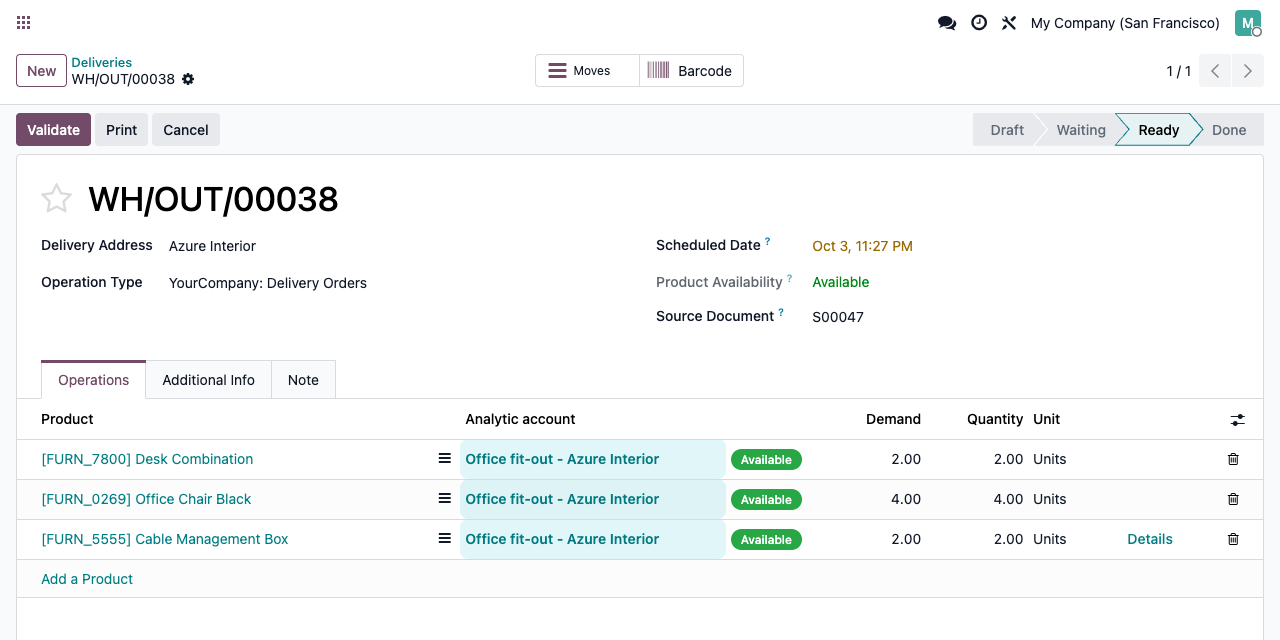
An analytic account per line
The Operations tab of every transfer gets an Analytic account column. Deliveries, internal transfers to a site, receipts: you choose, line by line.
Booked when the transfer is done
Each line with an account creates one analytic item: minus the product cost times the quantity done, labelled with the transfer and the product, e.g. [WH/OUT/00038] Desk Combination.
Partial deliveries, counted once
Deliver 2 out of 3 and create a backorder: only the 2 delivered units are booked, the backorder books its own cost when it is validated. Close the wizard without validating and nothing is booked.
Returns corrected
Send goods back with the standard Return button: once the return is validated, the cost is reduced, or removed for a full return.
Project margins
Your real margin, materials included
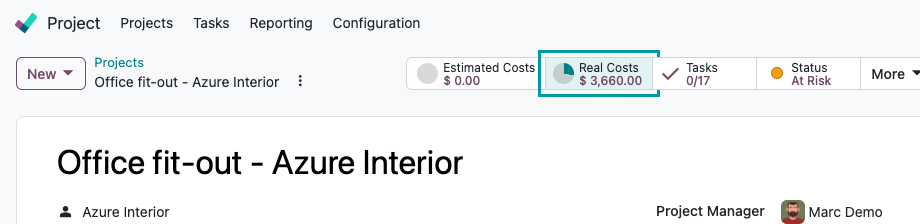
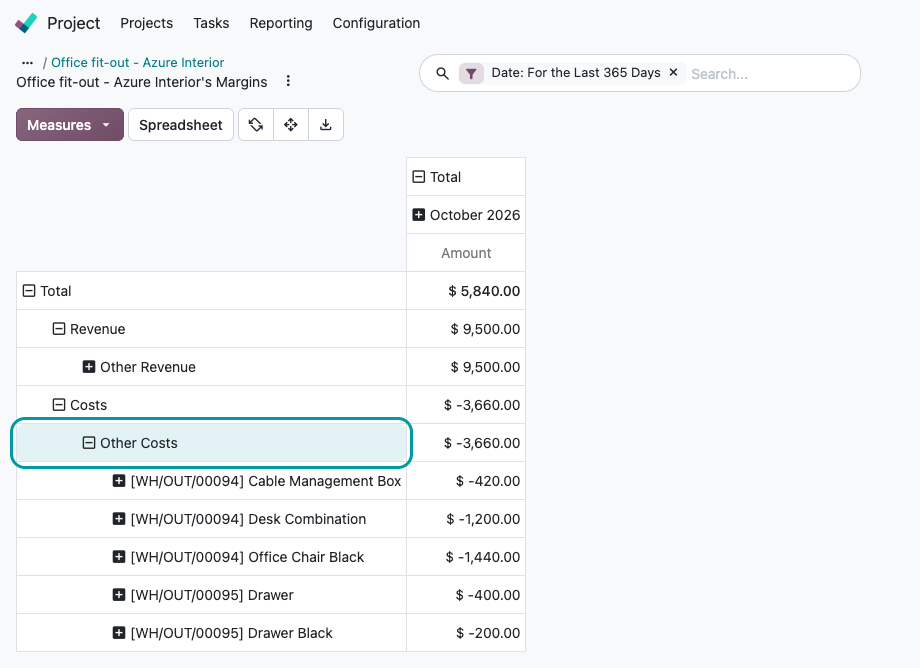
The analytic items land on the project’s analytic account. In Odoo 20 the project form counts them in its Real Costs button, and the project’s Margins report lists them under Other Costs, next to your invoiced revenue. That button and report come with Sales and Project (the standard Sales - Project bridge) and show on billable projects, for project managers.
Real Costs on the project form
Margins report: one line per delivered product
Traceability
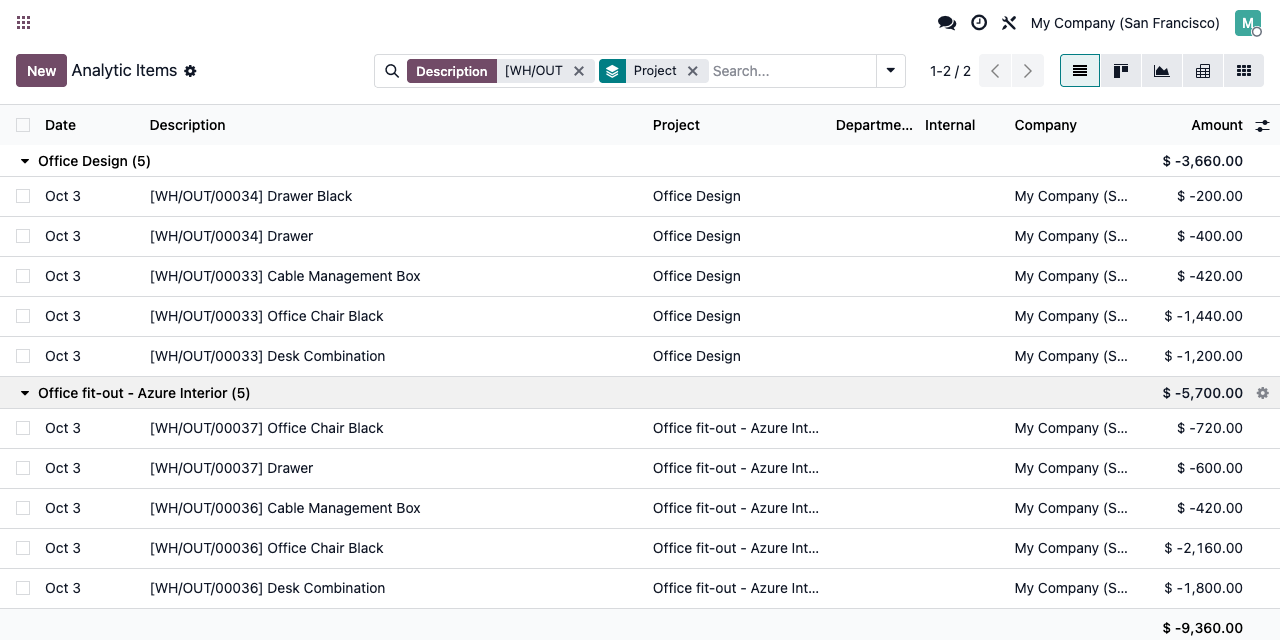
Every cost, back to its transfer
Each analytic item names the transfer and the product. Group them by account, filter by period, pivot or export them like any other analytic item.
Setup
Three steps, no configuration
1
Install the module
It depends on Inventory and Analytic Accounting only. Enable Analytic Accounting in the Accounting / Invoicing settings to manage analytic accounts.
2
Give the project an account
Each project has an analytic account in its settings. Any other analytic account works too: a job, a site, a customer.
3
Fill the lines, validate
Set the Analytic account on the operation lines before validating. Done lines are read-only, so set it first.
Under the hood
How the cost is computed
FAQ
Good to know
Odoo can charge transfers to a project too. Why this module?
Project - Stock Account charges a whole transfer to the project selected on it, for operation types where Analytic costs is enabled, through stock accounting. This module works line by line, with any analytic account, and needs neither stock accounting nor a project on the transfer.
Does it need Accounting?
No. Inventory and analytic accounts are enough to book the costs. The Real Costs button and the Margins report of a project need Project and Sales.
A question? A problem? Talk to the people who built it.
We will get back to you within 8 business hours.

Email us directly at
Published by
Nalios — Odoo Gold Partner, Belgium — nalios.be