Anti-Waste: Automatic Expiry Markdowns
Mark down lots that are close to their expiry date, print discounted shelf labels and measure the waste you avoid.


Présentation du module

/ Odoo 20 · Inventory
Sell it before it expires
Every night, each lot close to its expiry date gets the markdown you decided: -20 % five days before, -40 % two days before, -60 % the day before. Shelf labels, the Point of Sale and your webshop follow, and a report shows how much waste you avoided.

What it does
Markdowns that follow the calendar
Built for grocers, bakeries, delis and organic shops that track their fresh products by lot with an expiry date. No more walking the aisles with a list and a sticker gun.
Rules you set once
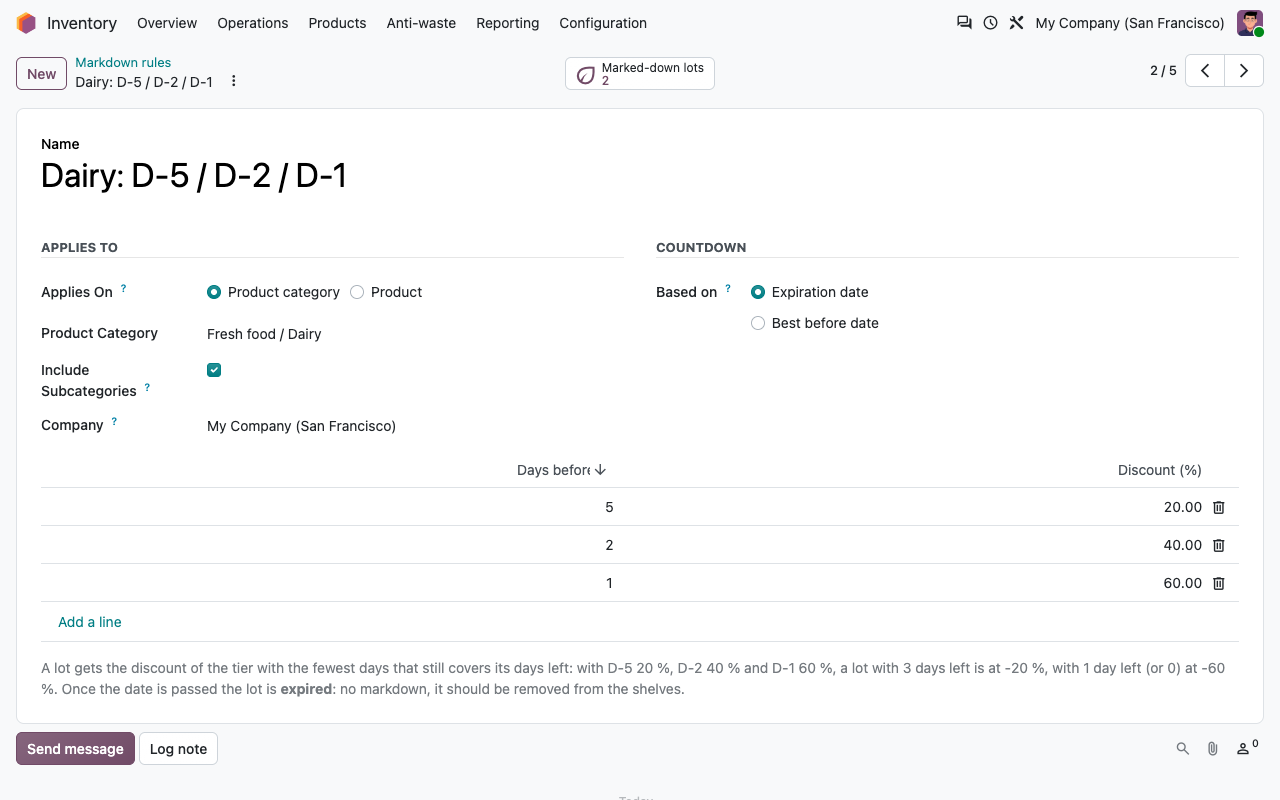
Per product category (subcategories included if you want) or per product. Each rule has tiers: N days before the date, X % off. A product rule always wins over a category rule.
Use by or best before
Each rule counts down to the expiration date (use by) or to the best before date of the lot, as you choose.
A list of what to act on
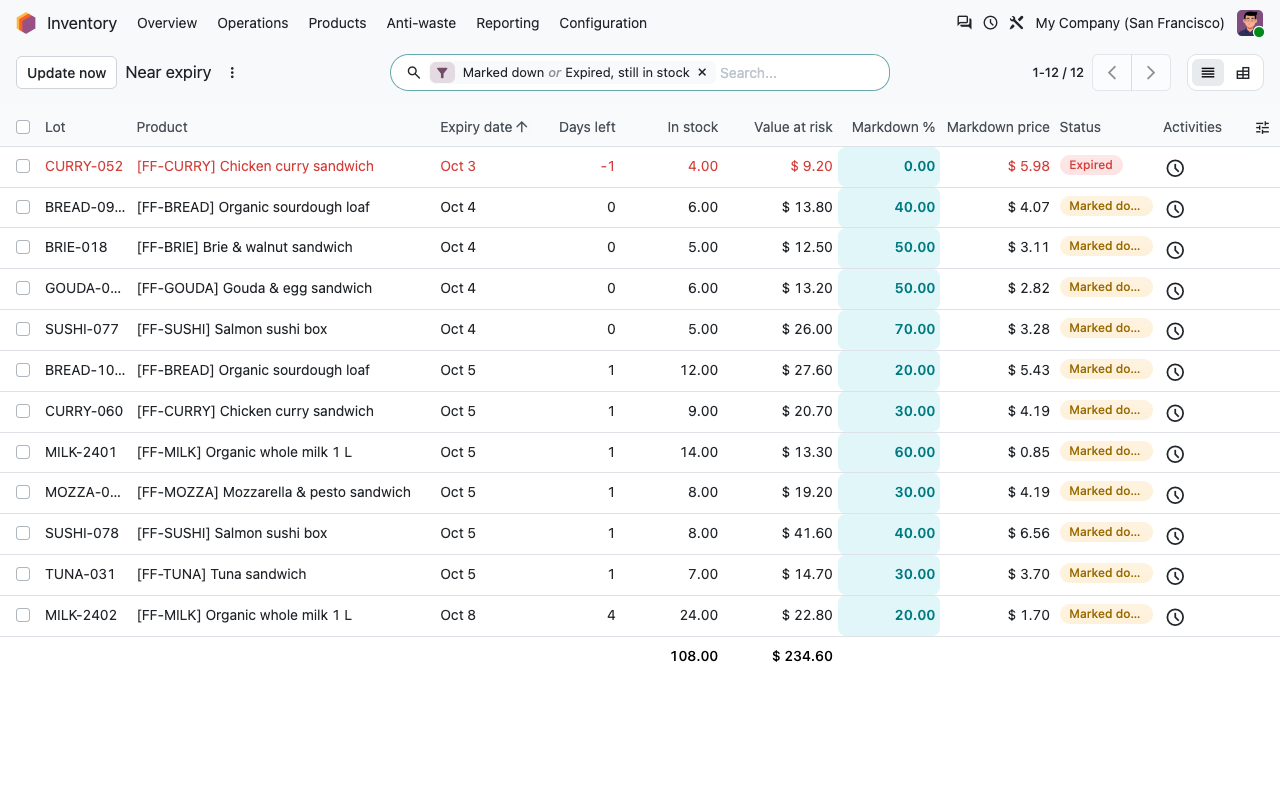
Inventory > Anti-waste > Near expiry: lot, product, date, days left, quantity in stock, value at risk, current markdown and markdown price. Expired lots still in stock show in red.
Updated every night
A scheduled action recomputes every lot in stock (internal locations). Running it twice the same day changes nothing. You can also run it on demand after you change a rule or receive goods.
In the shop
Rules on one side, labels on the other
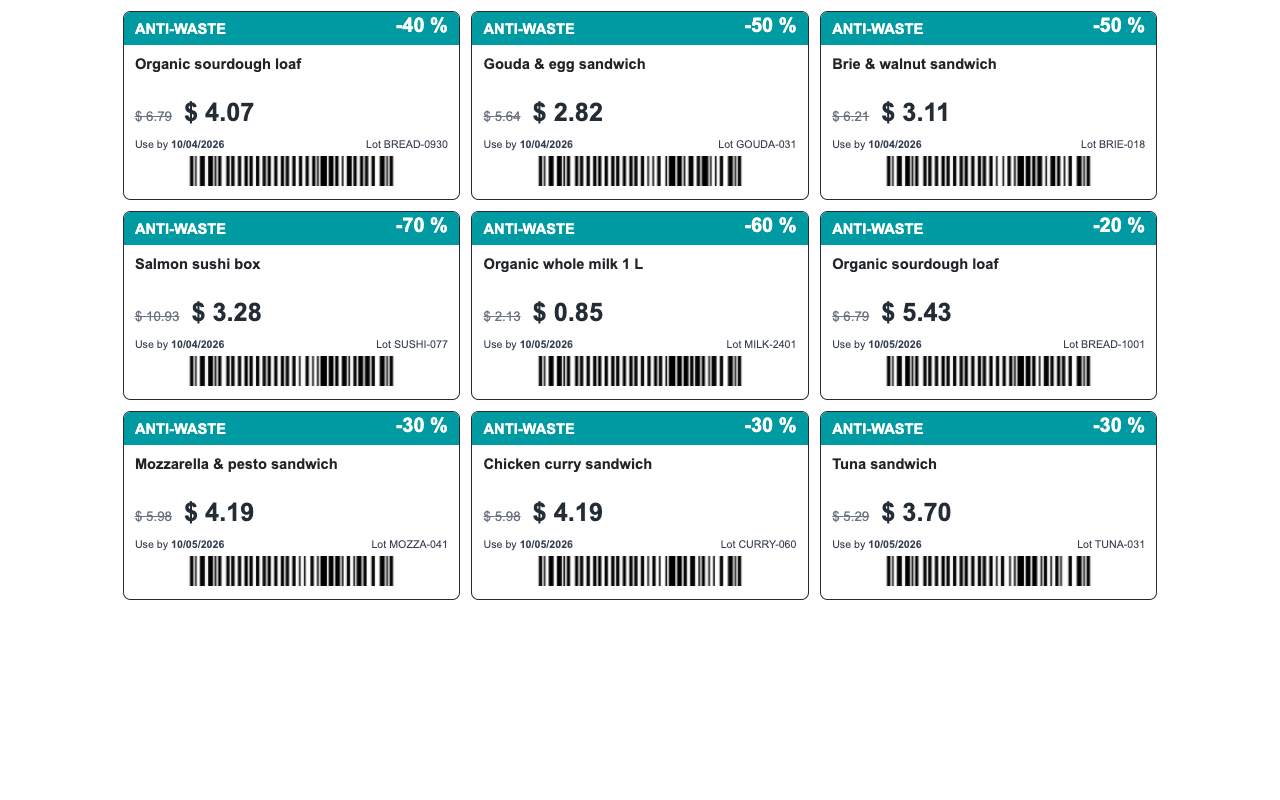
Select lots in the list and print shelf labels: product, regular price struck through, markdown price, use by date, lot and product barcode. Or send the shop manager a to-do for each lot (automatically too, if you wish).
A markdown rule with three tiers
Anti-waste shelf labels (A4, three per row)
At the till
The cashier scans, the markdown follows
With the free Point of Sale bridge (installed automatically when you use the Point of Sale), the lot chosen on a line decides its discount.
Lot in, discount on
Enter, select or scan the lot as usual: the line gets the markdown of that lot as a discount. Change the lot and the discount follows.
Clearly labelled
The order line and the receipt show Anti-waste -X %, so customers see why the price is lower. The markdown is saved on the order line.
Works offline
Markdowns are loaded with the products when the session opens, so a network cut does not stop the discounts.
The cashier keeps control
A discount typed by hand replaces the markdown: the line is then no longer flagged as anti-waste.

Online
A last chance page for your webshop
With the free eCommerce bridge (installed automatically with eCommerce), customers find the deals and get them in their cart.
Last chance ribbon
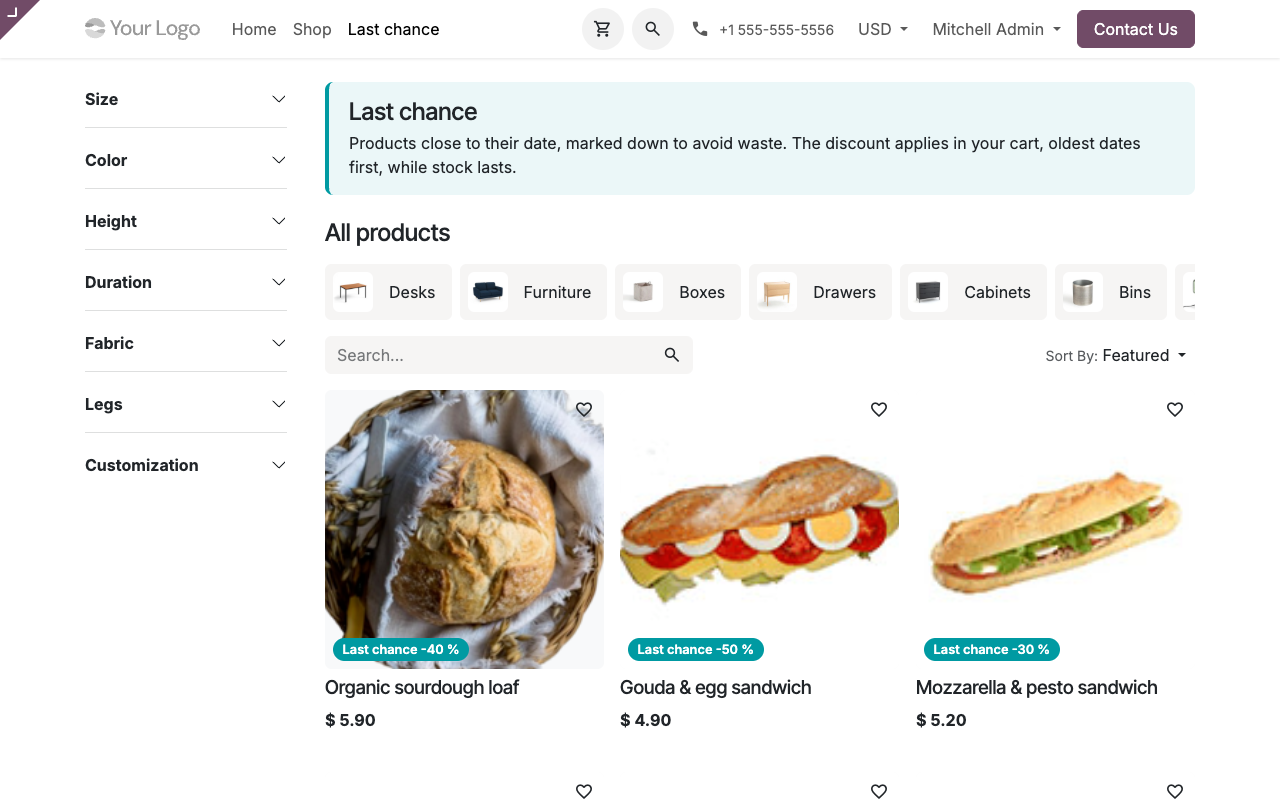
Products with marked-down lots in stock show Last chance -X % on their picture in the shop.
Last chance page
/shop/last-chance lists only those products, and a Last chance menu entry is added to your website.
Real quantities
The product page shows how many units are marked down and until when. In the cart, the quantity is spread over the lots in stock, closest date first, and each unit gets the markdown of its lot.
Shipped first
With the FEFO removal strategy on your fresh categories, the delivery then ships those same lots first.
Sales orders
Delivered lots, discounted lines
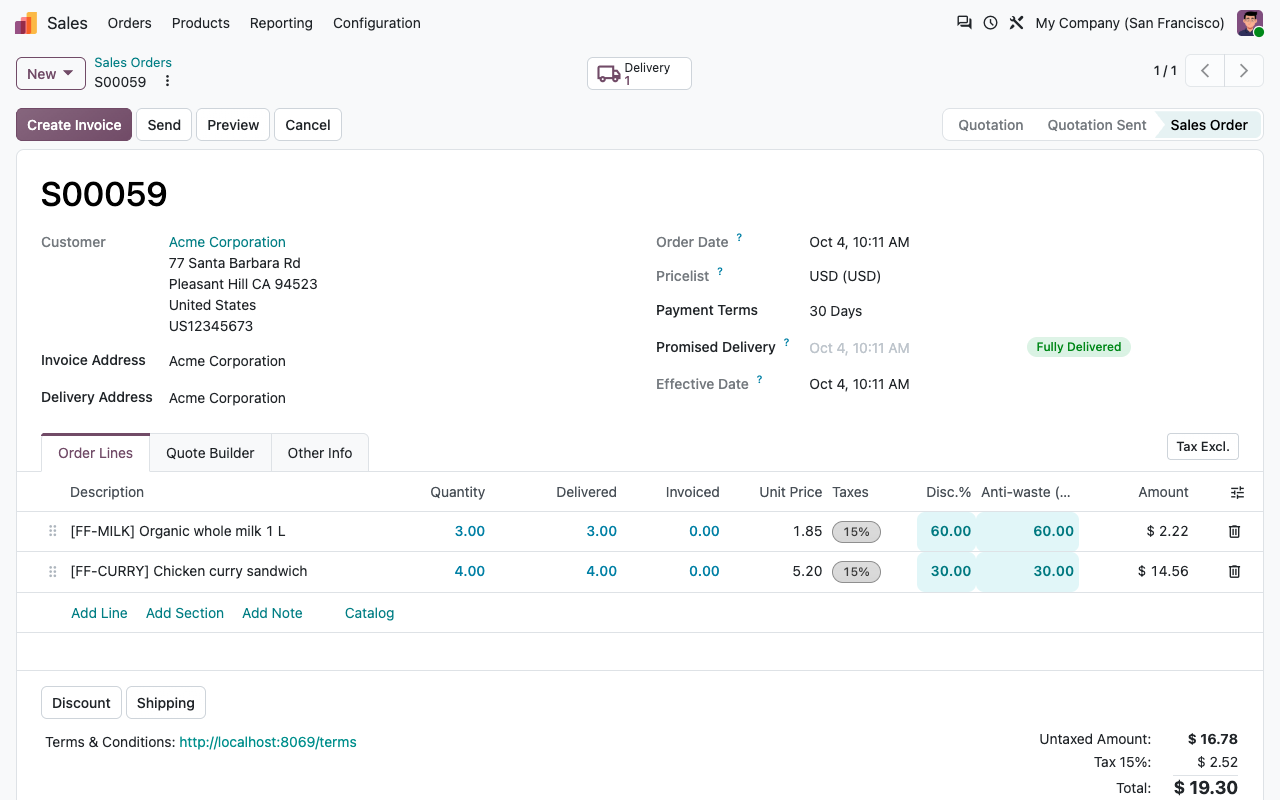
Odoo does not let you choose a lot on a quotation line: the lot is known when the delivery is validated. At that moment, the markdown of the lots shipped is applied on the sales order line (weighted average if several lots) and noted in the chatter, as long as the line is not invoiced yet and has no bigger discount.
Reporting
Waste avoided, in numbers
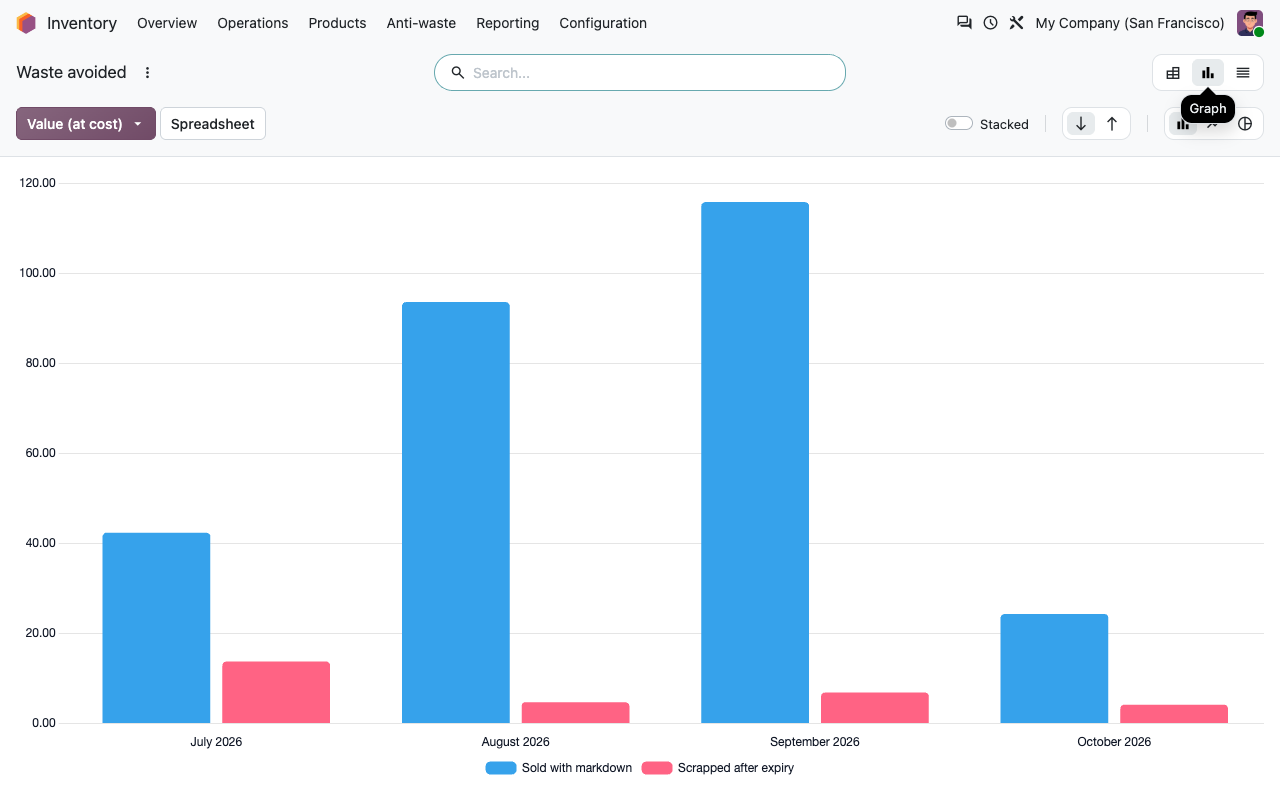
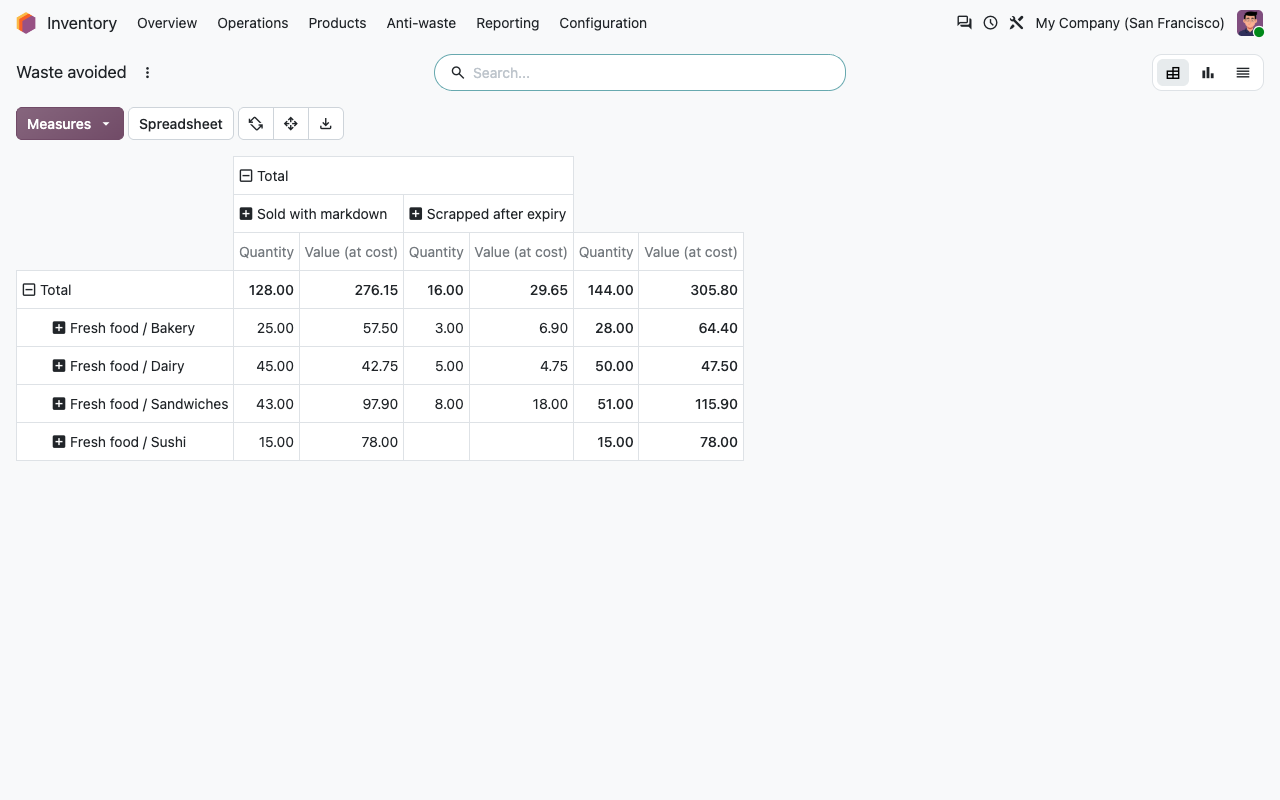
Inventory > Anti-waste > Waste avoided compares, by period and product category, what you sold with a markdown with what you still scrapped after expiry, in quantity and in value at cost. Sales orders, Point of Sale and webshop all count.
Value sold with markdown vs scrapped after expiry, per month
Quantities and values per product category
Setup
Ready in ten minutes
1
Lots and dates
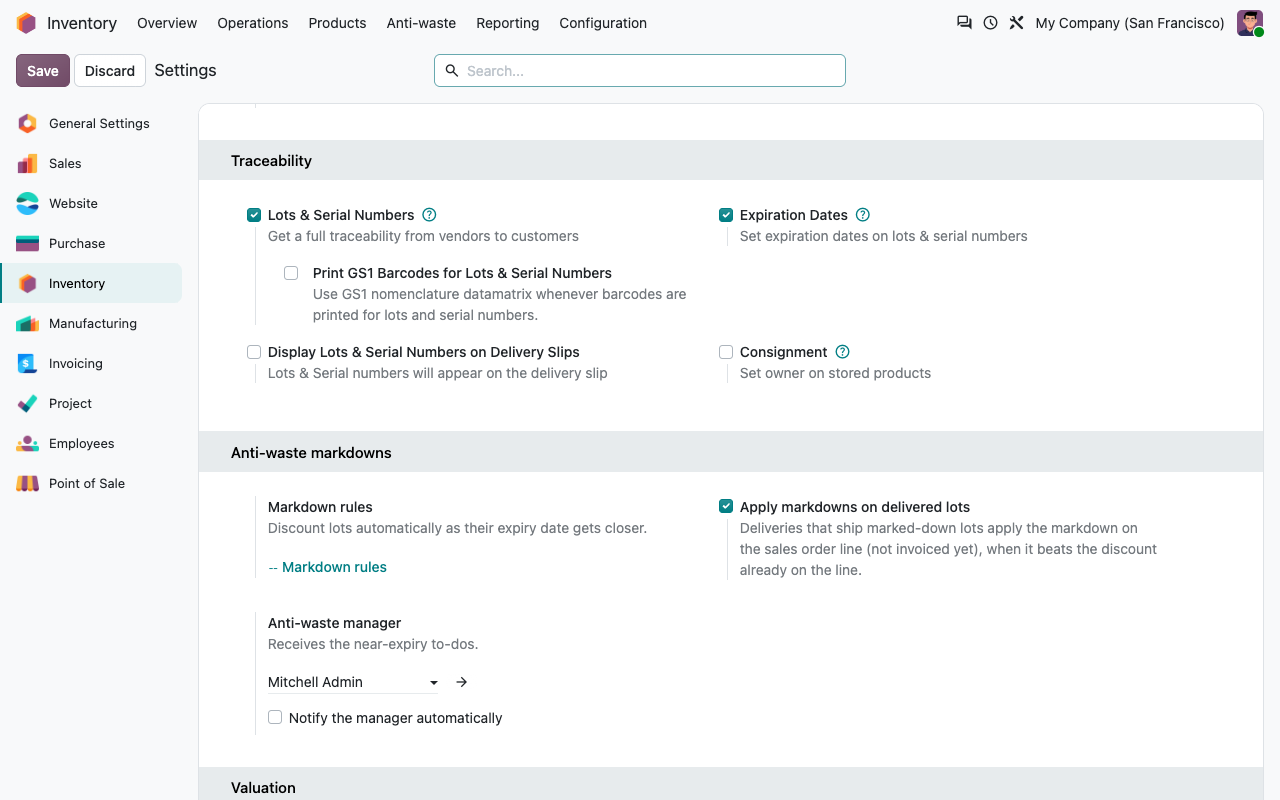
Inventory settings: enable Lots & Serial Numbers and Expiration Dates. Track your fresh products by lot with expiration dates.
2
FEFO on fresh categories
Set the First Expiry First Out removal strategy on the product categories concerned, so the oldest lots leave first.
3
Create your rules
Inventory > Anti-waste > Markdown rules: one per category or product, with your tiers. Choose the shop manager in the settings.
4
Print and sell
Every morning, open Near expiry, print the shelf labels. The till and the webshop apply the markdowns by themselves.
Under the hood
How it works
FAQ
Good to know
Can I choose the lot on a quotation?
Not in standard Odoo, so the markdown of a backend sales order is applied when the delivery is validated, on lines not invoiced yet. You can turn this off in the settings.
Is a markdown added to a customer discount?
Never cumulated: on a sales order line, the markdown is applied only when it is higher than the discount already on the line.
Is the online discount reserved?
No. It is computed from the stock available when the cart changes. Until the order is confirmed, the same lots can be sold at the counter. Confirmed online orders keep the price the customer saw.
When does the Point of Sale see a new markdown?
When the session is (re)loaded, after the nightly update or an update run on demand.
Does it change my sales settings?
Installing it turns on Discounts on sales order lines, so the markdown is visible on your orders.
Which languages?
English and French (also used for fr_BE).
A question? A problem? Talk to the people who built it.
We will get back to you within 8 business hours.

Email us directly at
Published by
Nalios — Odoo Gold Partner, Belgium — nalios.be