Multi-Brand Documents
Print PDF documents under several brands: logo, tagline, address and footer chosen by salesperson or website.


Présentation du module

/ Odoo 20 · Reporting
Multi-Brand Documents
One company, several brands. Print quotations, invoices and every other PDF with the right logo, tagline, address and footer, picked automatically from the salesperson or the website.
The result
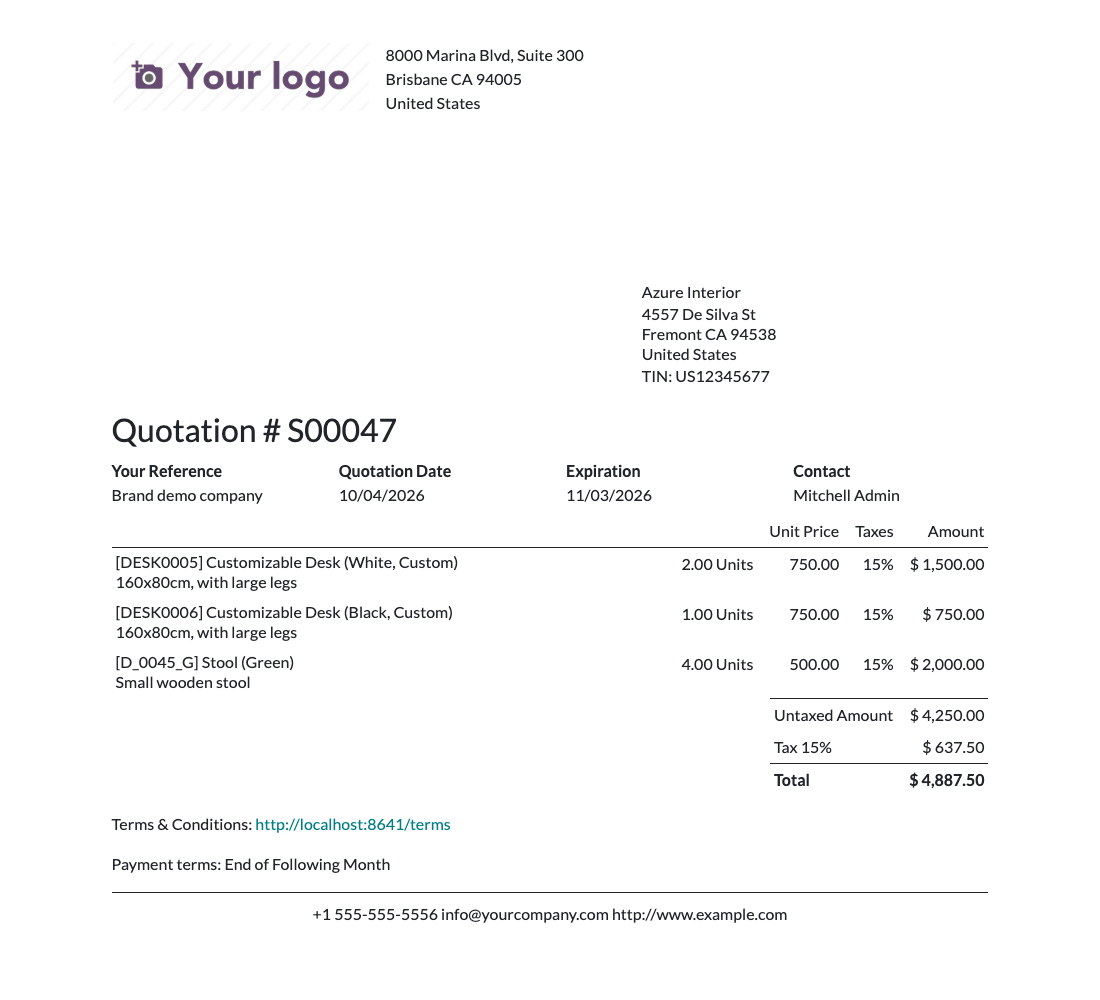
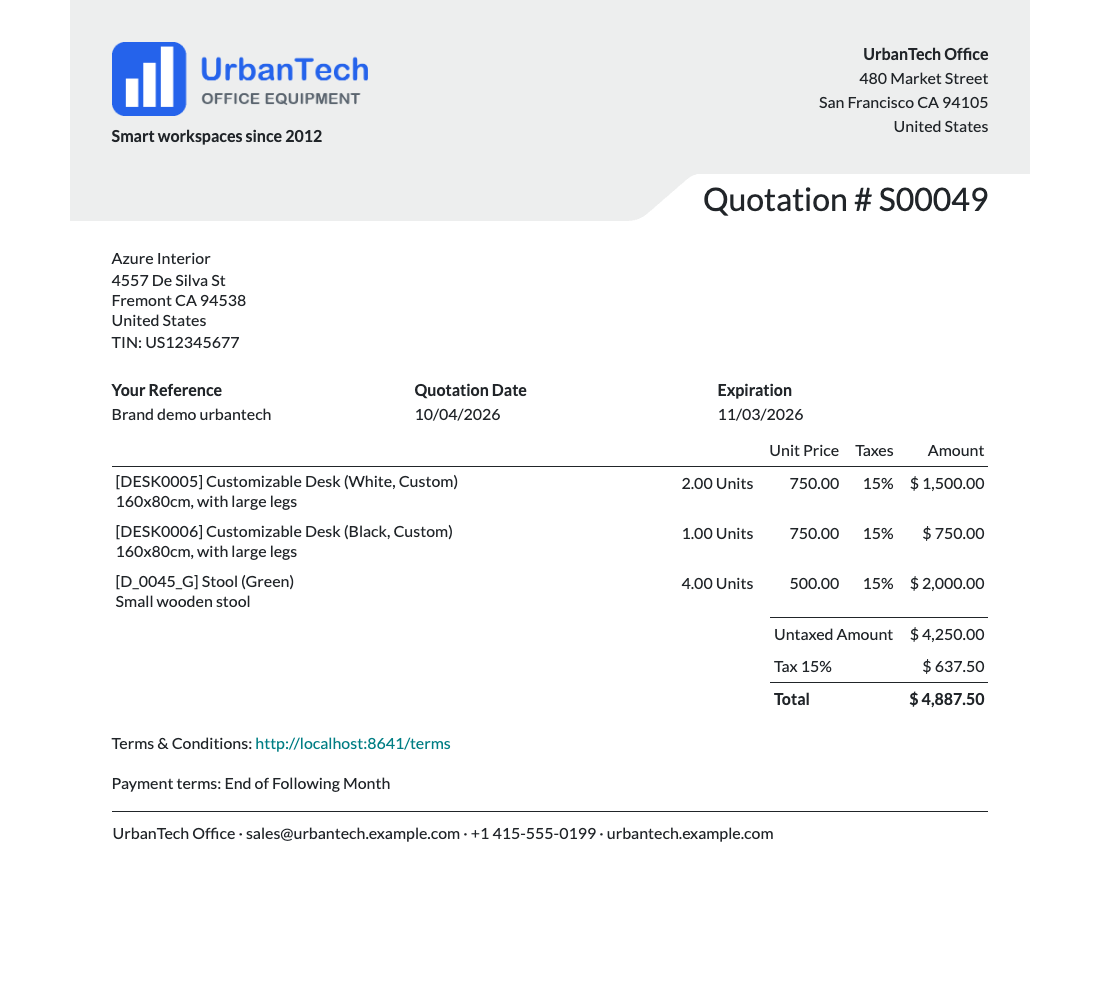
Same company, different letterhead
Two quotations from the same company to the same customer. Left: printed by a salesperson without a brand. Right: printed for Marc, who sells for the GreenLeaf brand.
No brand: the company header and footer
Salesperson with the GreenLeaf brand

How the brand is chosen
The right brand, without thinking about it
Nobody picks a brand when printing. Odoo looks at the document and applies the first match, in this order.
1. The salesperson
If the responsible user of the document (salesperson, buyer...) has a brand, it wins.
2. The website
Otherwise, if the document comes from a website with a brand, such as an eCommerce order, that brand is used.
3. The person printing
Otherwise, the brand of the user who prints the document applies.
No brand at all
Nothing matches? The document keeps the standard company header and footer.
Setup
Configured once, applied everywhere
1
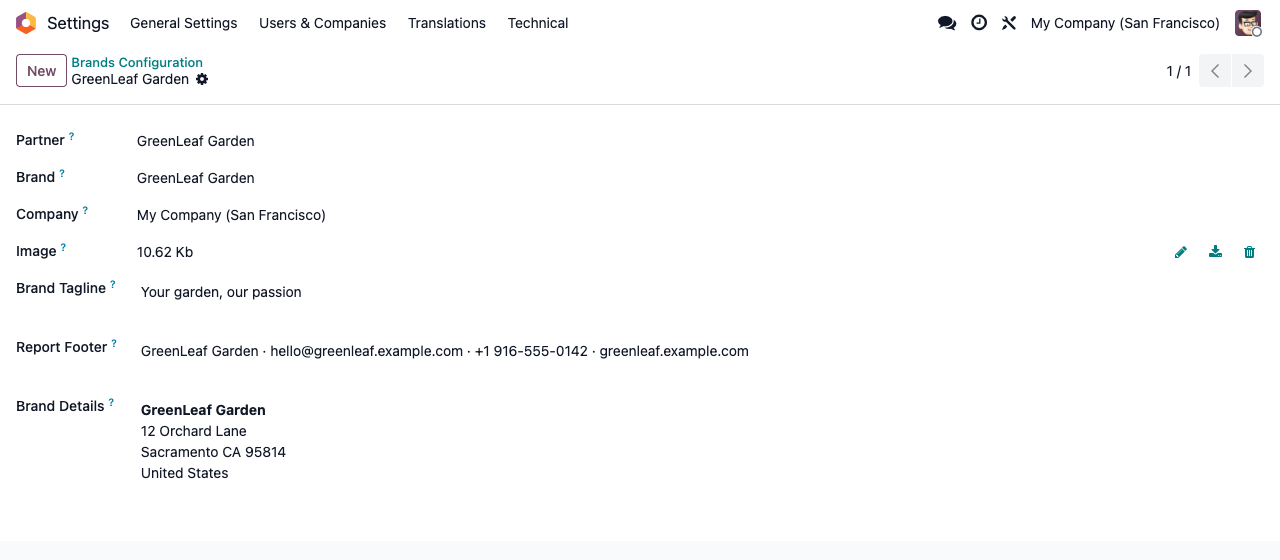
Create your brands
Activate the developer mode, then go to Settings > Technical > Reporting > Brands. For each brand: a contact for its address, a name, the company, a logo, a tagline, a footer and an address block.
2
Assign them
On a user: Settings > Users & Companies > Users, Preferences tab, field Brand. On a website: Website > Configuration > Websites, field Brand (developer mode).
3
Print as usual
Quotations, invoices, delivery slips, purchase orders: every PDF using the company document layout picks up the right brand.
Assignment
One field on the user, one on the website
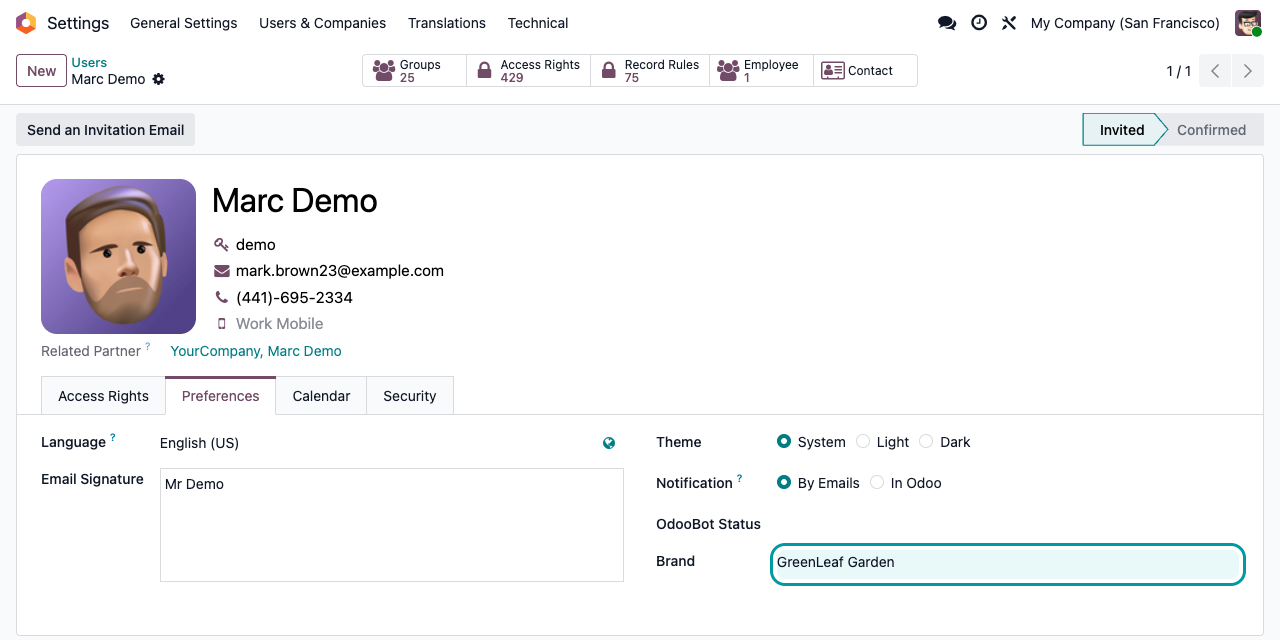
Assignment
Give each website its own brand
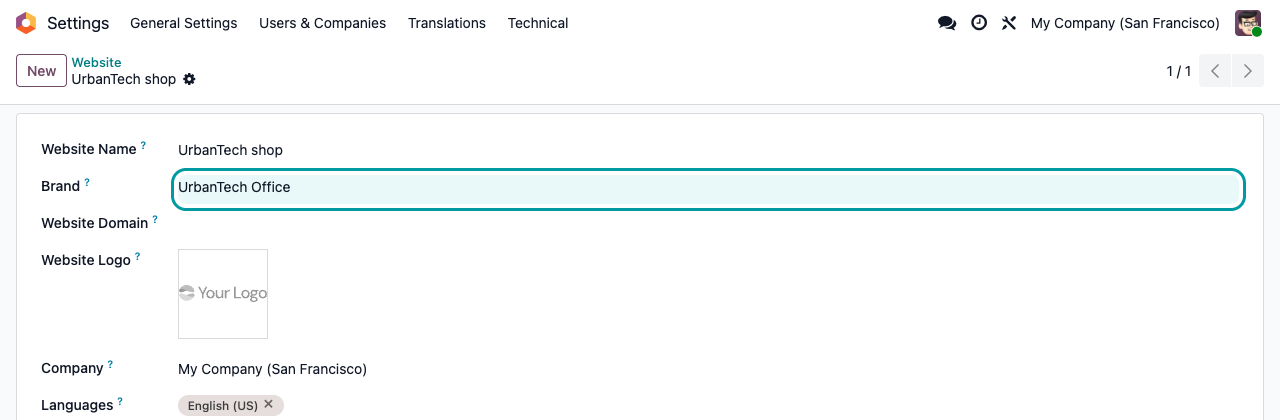
All eight layouts
On Odoo 20 the brand replaces the logo, the tagline, the address block and the footer on every document layout: Light, Bubble, Wave, Folder, Center, Dual, Lines and Compact. The tagline appears where the layout prints the company tagline, in the header or in the footer. Choose your layout in Settings > General Settings > Document Layout.
FAQ
Good to know
Does it change emails or the website?
No. Only PDF documents built on the company document layout. Email templates, the website header and footer and the portal are not modified.
Is a brand a separate company?
No. Accounting, VAT number, bank accounts and sequences remain those of the company. The brand only changes what is printed in the header and footer.
What does a brand header show?
The brand logo and its Brand Details block, or the brand contact address when Brand Details is empty. The brand tagline and footer replace the company ones. The company VAT line is not printed in a brand header.
Who can manage brands?
Any internal user can create and edit brands. The Brands menu is under Settings > Technical, visible in developer mode.
What if I print a colleague’s quotation?
The salesperson’s brand comes first. Your own brand only applies when the document has no responsible user or website with a brand.
Why does it depend on eCommerce?
To read the website of sales orders and invoices. Installing the module therefore installs Website and eCommerce.
A question? A problem? Talk to the people who built it.
We will get back to you within 8 business hours.

Email us directly at
Published by
Nalios — Odoo Gold Partner, Belgium — nalios.be