SSH Terminal & Server Manager
Connect to your servers from Odoo: SSH address book, web terminal and saved command routines.


Présentation du module

/ Odoo 20 · Administration
SSH Terminal
Your servers in one Odoo address book, a web terminal one click away, and saved routines for the checks you run every week. Access is limited to the people you choose.

What it does
Your servers, one click from Odoo
Support and operations teams keep connection details in spreadsheets and password managers, then retype the same commands. SSH Manager keeps both in Odoo.
An address book of servers
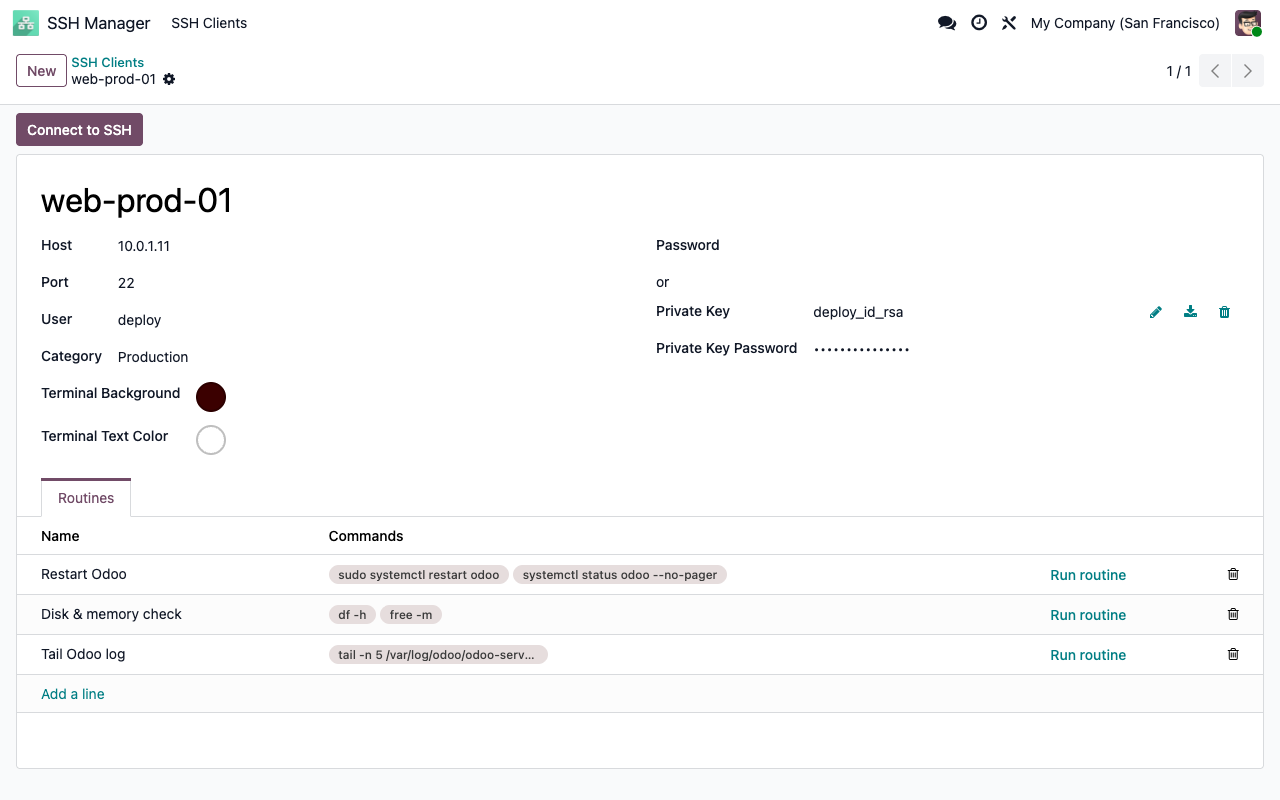
Name, host, port, user, password or RSA private key with its passphrase, and a category such as Production or Staging to group the list.
A terminal in the browser
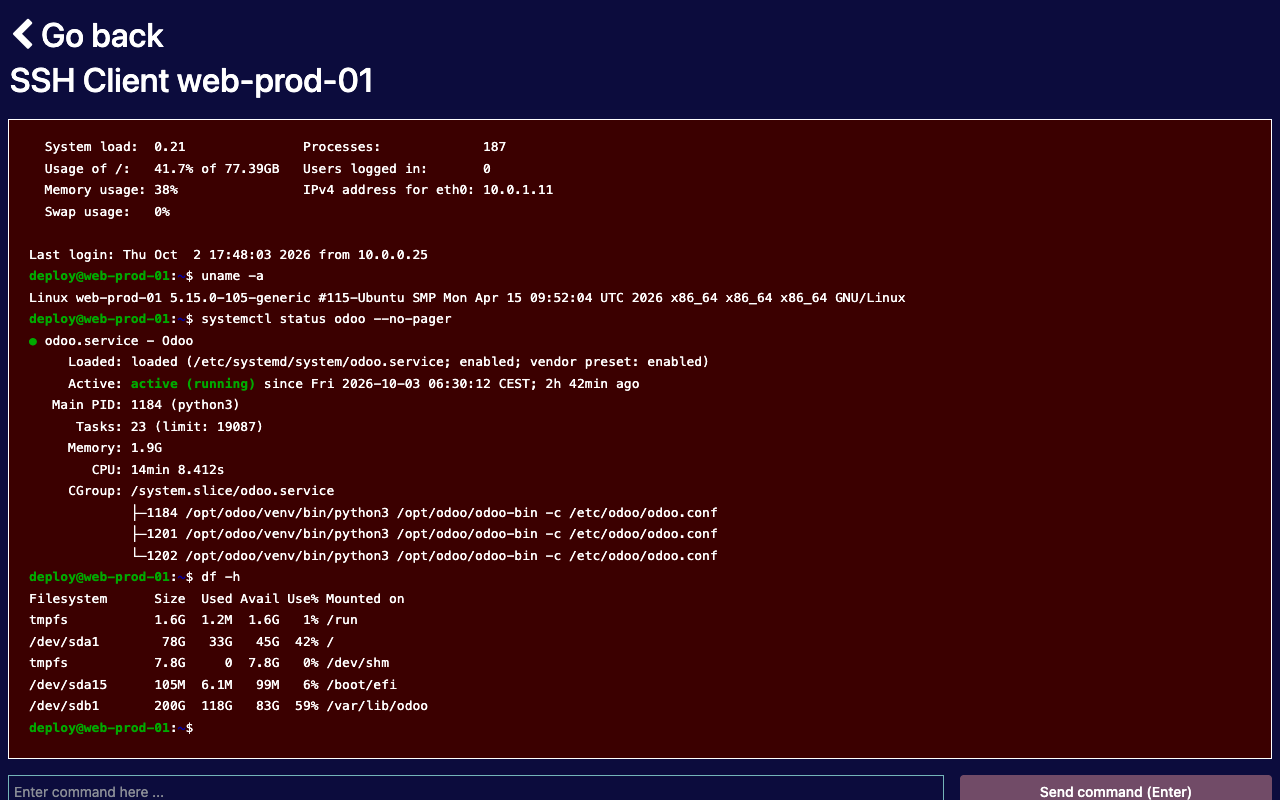
Click Connect to SSH: a full-screen terminal opens with the server banner. Type a command, press Enter, read the output with its colours.
Routines for repeated checks
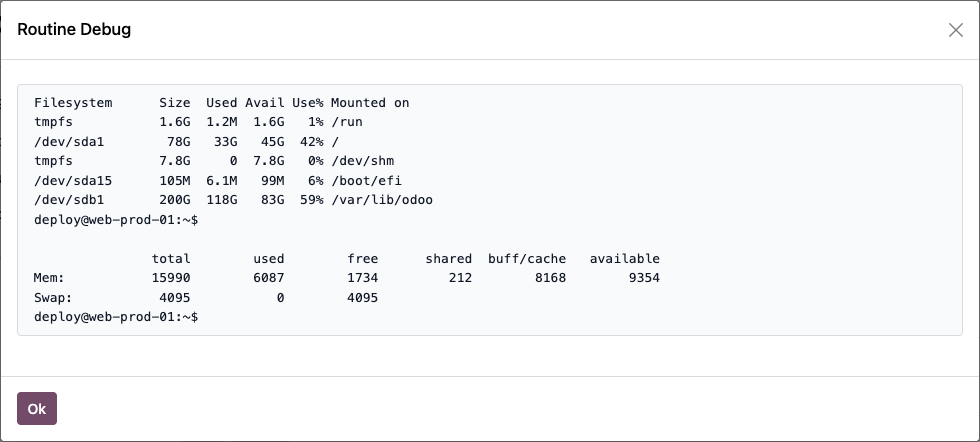
Save an ordered list of commands per server (restart a service, check disk and memory, tail a log) and run it with one click. The output opens in a pop-up.
Red means production
Set the terminal background and text colour per server, so nobody mistakes the production database server for staging.
Routines
Write the commands once, run them on demand
Each server has a Routines tab. Commands are dragged into order and run one after the other; the combined output is shown when the last one is done.
Setup
Ready in three steps
1
Install the libraries and the module
The Odoo server needs the Python libraries paramiko and ansi2html. Then install SSH Manager.
2
Grant access
Only members of the Has access to SSH group see the app. The administrator is added at installation; add other users from Settings > Users.
3
Register your servers
SSH Manager > SSH Clients > New. Fill in the connection, pick a category and colours, add routines, then click Connect to SSH.
Good to know
Honest limits
Can I run vim, top or a sudo password prompt?
No. The terminal sends a command and shows what the server answers. Interactive programs and prompts that wait for input are not supported. Output is read in short polls, so a very long command may come back in parts.
Where do connections come from?
From the Odoo server, not from your computer. The Odoo server must be able to reach your hosts (firewall, VPN, port).
Which keys are supported?
Passwords, or RSA private keys with an optional passphrase. Ed25519 and ECDSA keys are not supported. Host keys are accepted automatically.
Who can see the credentials?
Passwords and keys are stored in the Odoo database and readable by every member of the “Has access to SSH” group. Keep that group small. Executed commands are not logged.
Does it work with several Odoo workers?
Routines open the connection and run in a single request, so they work everywhere. The interactive terminal keeps its session in the Odoo process that opened it: with several workers, a later command can reach another worker and fail. It is most reliable on single-worker servers.
Where do I manage categories?
Categories are created directly from the Category field of a server. There is no separate menu for them.
A question? A problem? Talk to the people who built it.
We will get back to you within 8 business hours.

Email us directly at
Published by
Nalios — Odoo Gold Partner, Belgium — nalios.be