
With Odoo 20, the publisher has focused on hospitality: restaurants, bars, snacks, and delivery services. The POS Restaurant, the ordering terminal, and the kitchen screen have been designed to serve faster, bill more accurately, and better track each customer from order to pickup.
Automatically added fees, more flexible presets, SMS or WhatsApp notifications, enhanced reporting: here are the new features of the Odoo 20 point of sale that will change your teams' daily routine. If you are still using the previous version, our article on the Odoo 19 POS Restaurant provides an overview of your starting point.
01Service fees, automatically added
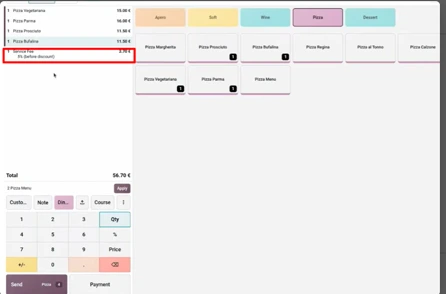
Do you charge for table service? Odoo now adds it automatically to each relevant order, in the form of a clearly visible "Service Fee" line on the receipt.
1 · What it changes for you
- No more forgetting : the server has nothing to add, even on a busy Saturday night.
- An always accurate amount, fixed or as a percentage of the order.
- Calculated before discount : a discount on the bill does not reduce your service fees.
- More transparency : the customer clearly sees what they are paying, line by line.

Result at checkout: for four pizzas at €54, a line "Service Fee - 5% (before discount)" of €2.70 is added automatically. Total: €56.70.
Source : vidéo Odoo « Streamline your POS orders thanks to the rebranded Presets »
02Delivery fees and maximum radius
Do your customers order online or at the kiosk for delivery? The preset "Delivery" now automatically manages the delivery price and the area you cover.
1 · What it changes for you
- No more out-of-area orders : beyond the maximum radius chosen, delivery is not offered.
- Fees calculated without intervention : the delivery fees are added automatically.
- An average basket that rises : free delivery from a certain amount naturally pushes orders up.
2 · How to use it
- Open your delivery preset, tab Self Ordering, and activate Available in self with Service at = Delivery.
- Fill in the starting address (your restaurant): this is used to measure the distance.
- Set the delivery price (for example €5) and, if you wish, the amount from which it becomes free (for example €50).
- Indicate the maximum radius (for example 20 km).
- Choose the delivery product that will appear on the ticket.
/
Source: Odoo video « Streamline your POS orders thanks to the rebranded Presets »
03POS presets tailored to you
Presets define the ordering mode: on-site, takeout, delivery... In Odoo 20, they are no longer limited to a few fixed types. You create the ones you need, for example a preset « Staff » for staff meals, with its own prices and taxes.
- One-click change : the customer ultimately decides to take out? We change the preset during the order, and prices, taxes, and fees recalculate automatically.
- Colors : each preset has its color, easily identifiable at a glance at the register, in the order list, and in the kitchen.
- Preset settings : price list, tax position, time slots, preparation capacity, service or delivery fees.

Source: Odoo video « Streamline your POS orders thanks to the rebranded Presets »
💡 The Nalios perspective
Presets are where everything is set, including taxation. The VAT rate is often not the same on-site and for takeout: before allowing your teams to change presets with one click, check the tax position and price list of each.
A poorly configured preset repeats on every ticket.
04Online ordering and kiosk: a smoother customer journey
The self-service order (kiosk or smartphone) has been redesigned so that the customer always knows the status of their order.
- Phone number required : according to the preset, the customer leaves their number, with a country code selector. You can reach them in case of an issue.
- Delivery addresses via Google : the address auto-fills during entry. Fewer typos, fewer lost delivery drivers, and reliable distance calculation for the maximum radius.
- Tracking via SMS or WhatsApp : the customer receives a confirmation with their pickup time, then a message when their order is ready.
- Dynamic QR code at the table : the server generates a QR code linked to the order, and customers add dishes themselves from their phone.

Source: Odoo video « Streamline your POS orders thanks to the rebranded Presets »
05Kitchen and checkout screen: each order at the right time
The preparation screen (kitchen display) has been redesigned with clear steps and alerts when an order is delayed. At the checkout, the order list groups everything in one place: dine-in, takeout, delivery, and kiosk orders.
- Filters by preset : Dine In, Takeout, or Delivery with one click.
- Color badges with the table number or delivery address.
- Pickup time and countdown : "1 hour left", "10 min. left", with a bar that fills up. The team knows immediately which order to prepare first.
- Preparation capacity : you limit the number of orders per time slot (for example, 5 every 30 minutes) to never be overwhelmed.

Source: Odoo video « Streamline your POS orders thanks to the rebranded Presets »
06A reporting system designed for the restaurant industry
The dashboard "POS - Restaurant" finally provides the numbers that matter to a restaurateur, not just the revenue.
| Indicator | What it teaches you |
|---|---|
| Guests and average revenue per guest | The real value of each cover, in addition to the average revenue per order |
| Revenue hour by hour | Your rushes, to adjust your teams |
| Analysis by preset | The channel that brings in the most: on-site, takeout, or delivery |

Source: Odoo video « Streamline your POS orders thanks to the rebranded Presets »
07And this is just the beginning
This overview does not cover everything. Odoo 20 also brings automatic menu (combo) suggestions at checkout, connection to delivery platforms like Uber Eats via UrbanPiper, a native Android app, and electronic price tags.
These POS innovations are part of a broader version, which we have decoded in our summary of the Odoo Experience 2026 and Odoo 20. For businesses with a point of sale in-store, also discover our approach to ERP projects in retail.
A well-tuned POS does not just process payments: it tells the kitchen what to prepare, and the customer when to come.
What to remember
Four changes to know before opening your register in Odoo 20.
Set these settings in your restaurant
Presets, taxation, kiosk and delivery: our consultants configure the Odoo 20 POS tailored to your service with you.
Découvrir notre approche d'intégrateur OdooSource: Odoo video « Streamline your POS orders thanks to the rebranded Presets ».
Key questions
Short answers about Odoo 20 Restaurant POS.
Automatic service and delivery fees, free and colorful presets, customer tracking via SMS or WhatsApp, a kitchen screen with delay alerts, and a dashboard dedicated to catering.
They are set on the relevant preset, as a fixed amount or percentage. Odoo then adds a line "Service Fee" to each order, calculated before discount.
Yes. In the Delivery preset, you specify the starting address and a maximum radius. Beyond that, delivery is not offered to the customer.
They receive a confirmation SMS or WhatsApp message with their pickup time, then a second message when the order is ready.