Rocket.Chat Integration & Website Live Chat
Embed Rocket.Chat in the Odoo backend and add its live chat widget to your website.


Présentation du module

/ Odoo 20 · Website & Discuss
Rocket.Chat Integration
Your Rocket.Chat workspace as an app in the Odoo menu, and its Livechat widget on your Odoo website. Your team chats without leaving Odoo, your visitors reach your Omnichannel agents.

What it does
Already on Rocket.Chat? Keep it, inside Odoo
Companies that run their team chat and customer support on Rocket.Chat do not have to switch to Odoo Discuss and Live Chat. This module brings Rocket.Chat to where your team works.
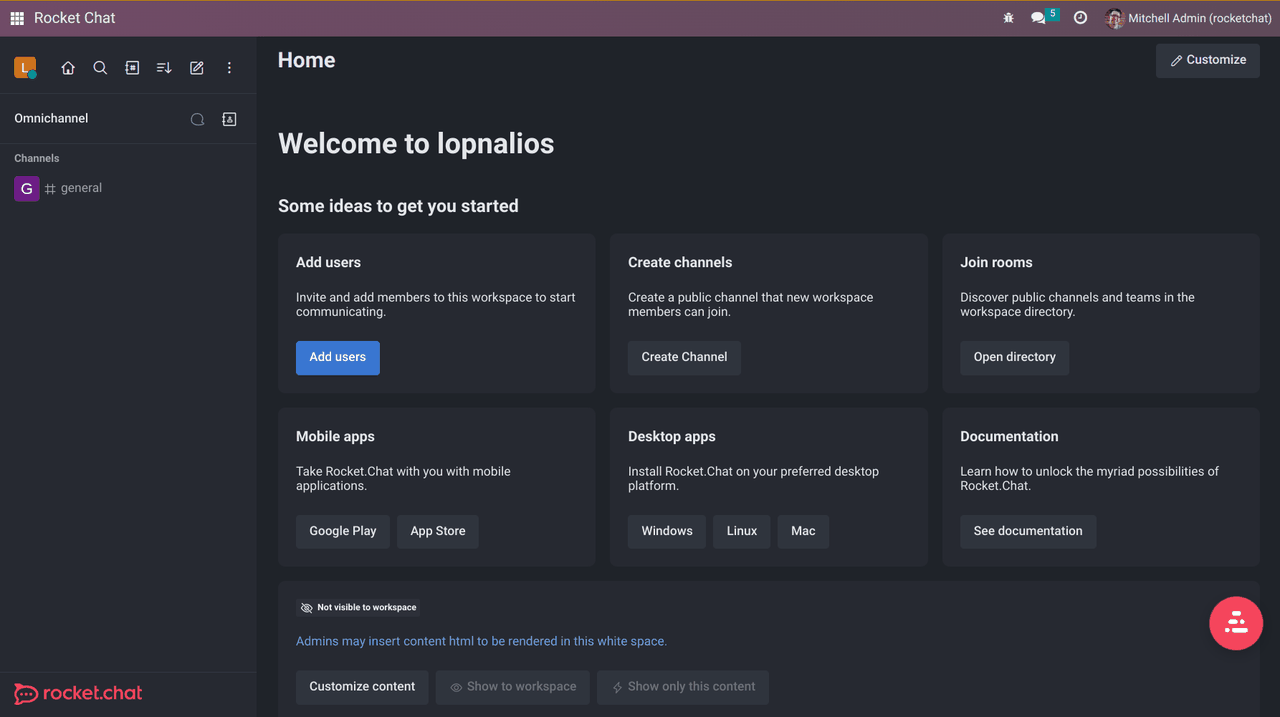
A Rocket Chat app in Odoo
A Rocket Chat entry in the Odoo main menu shows your workspace full page. Channels, direct messages and the Omnichannel queue are one click away from your sales orders and tasks.
For every internal user
Any internal Odoo user can open the app. Each person then signs in with their own Rocket.Chat account, inside the app.
Livechat on your website
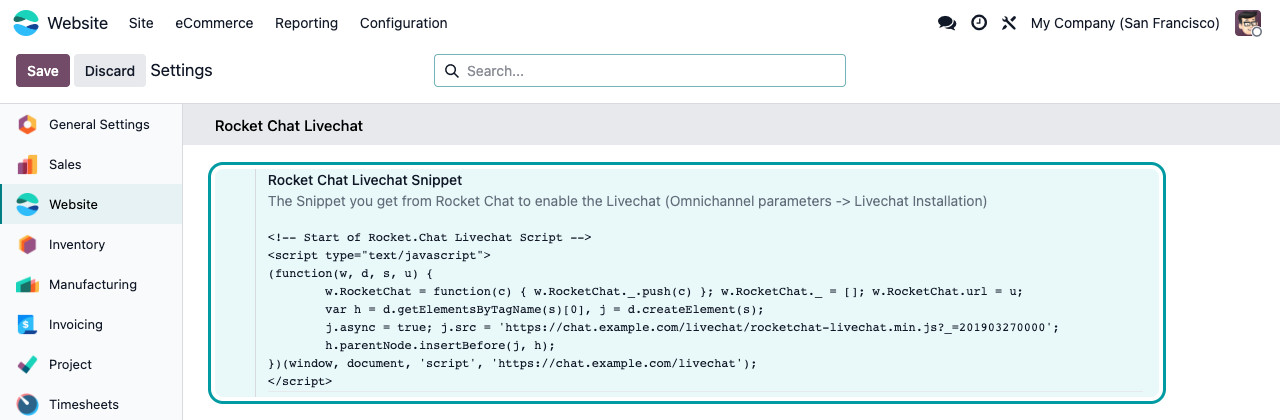
Paste the Livechat script from Rocket.Chat once: the chat bubble appears on every page of your Odoo website and conversations land in your Rocket.Chat Omnichannel.
One snippet per website
The snippet is stored on each website. With several Odoo websites, each can point to its own Livechat or have none.
Website Livechat
Paste the script, the bubble appears
Website > Configuration > Settings, section Rocket Chat Livechat: paste the code from Rocket.Chat (Administration > Omnichannel > Livechat Installation) and save. The script is added to every page of that website.

Setup
Ready in a few minutes
1
Allow Rocket.Chat in a frame
In Rocket.Chat, Administration > Workspace > Settings > General: untick Restrict access inside any Iframe, or set the X-Frame-Options so your Odoo domain is allowed.
2
Enter your workspace URL
Install the module (it requires Website). In developer mode, open Settings > Technical > System Parameters and set rocket.chat.url to your workspace address.
3
Open the app
Click Rocket Chat in the main menu and sign in with your Rocket.Chat account. Paste the Livechat snippet in the website settings if you want the website widget.
Good to know
Honest limits
Is my Odoo data synchronised with Rocket.Chat?
No. The app displays your Rocket.Chat workspace in a frame. Messages are not logged in the Odoo chatter and contacts are not linked.
Is there single sign-on?
No. Users sign in to Rocket.Chat inside the app with their Rocket.Chat account. The Rocket.Chat session is then remembered by the browser like on any other site.
The app stays blank. Why?
Rocket.Chat refuses to load in a frame by default. Untick “Restrict access inside any Iframe” or allow your Odoo domain, and check the URL in rocket.chat.url. Without a URL, the app shows a short setup message.
Can I use several Rocket.Chat servers?
The app uses one workspace URL per database. The website Livechat snippet, however, is set per website.
A question? A problem? Talk to the people who built it.
We will get back to you within 8 business hours.

Email us directly at
Published by
Nalios — Odoo Gold Partner, Belgium — nalios.be