Standing Orders
Weekly delivery templates per customer, sales orders generated and confirmed at the cut-off, closures and pauses, one-off changes, customer portal and production forecast.


Présentation du module

/ Odoo 20 · Sales
Standing Orders – Recurring B2B Deliveries
Bakeries, dairies, caterers and wholesalers: enter once what each customer receives on each weekday. Sales orders are generated and confirmed at the cut-off, holidays and pauses are skipped, and your customers change their next deliveries themselves from the portal.

Weekly template
One template, every week
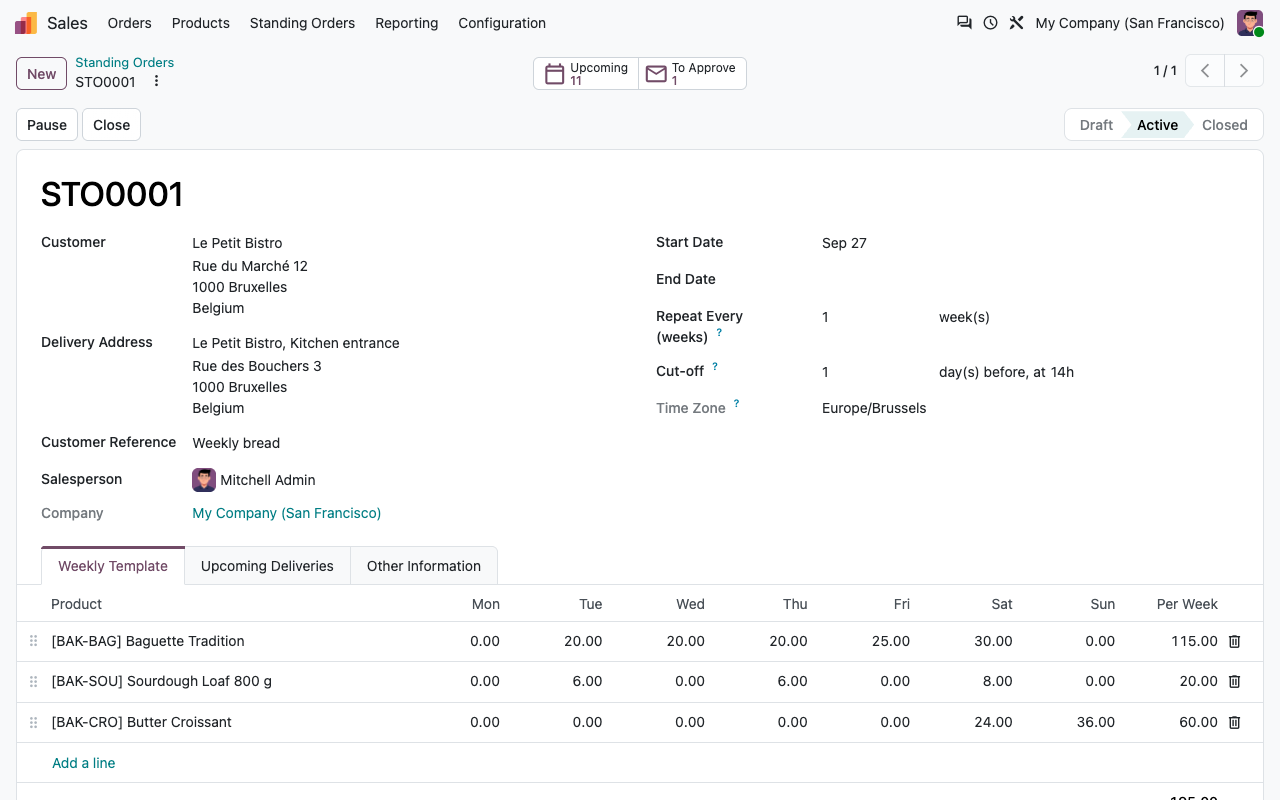
A standing order holds the products and the quantity for each day of the week. A delivery is planned on every weekday that has a quantity, from the start date to the end date.
Every week or every N weeks
Deliver every week, every other week, or every N weeks, counted from the week of the start date.
A cut-off per customer
For example the day before at 14:00. It is computed in the time zone you choose (Europe/Brussels by default), summer and winter time included.
One order per customer and day
Bread and dairy on two standing orders? Deliveries for the same customer, delivery address and date end up in one sales order.
Change it any time
Template changes update every delivery that is still open, except the quantities you changed for a single date. Each change is logged in the chatter.
Planned deliveries
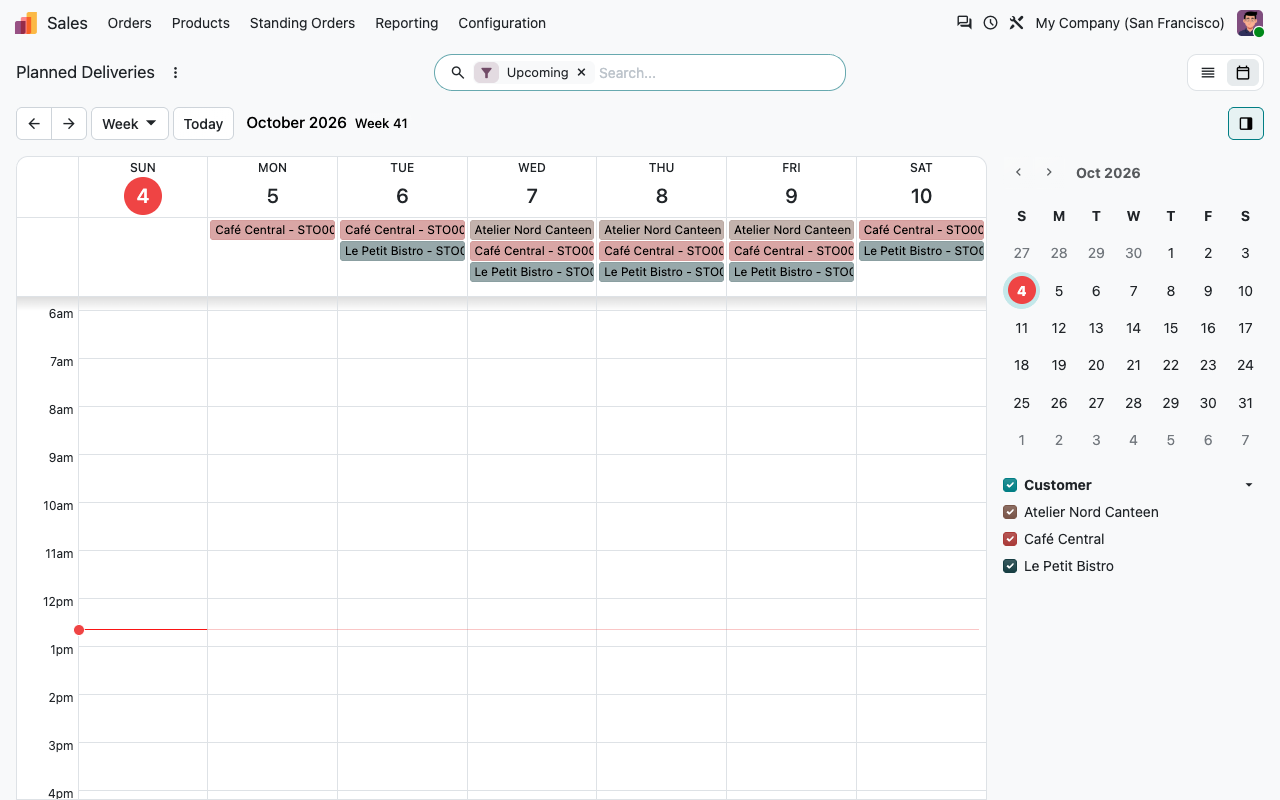
The next two weeks, at a glance
Deliveries are planned ahead over a horizon you set (14 days by default) and shown in a calendar and a list: customer, cut-off, total quantity, one-off changes and the sales order once generated.
One-off changes
Change one date, keep the template
A restaurant needs more bread on Friday, a canteen is closed on Wednesday: change that delivery, not the standing order.
Quantities for one date
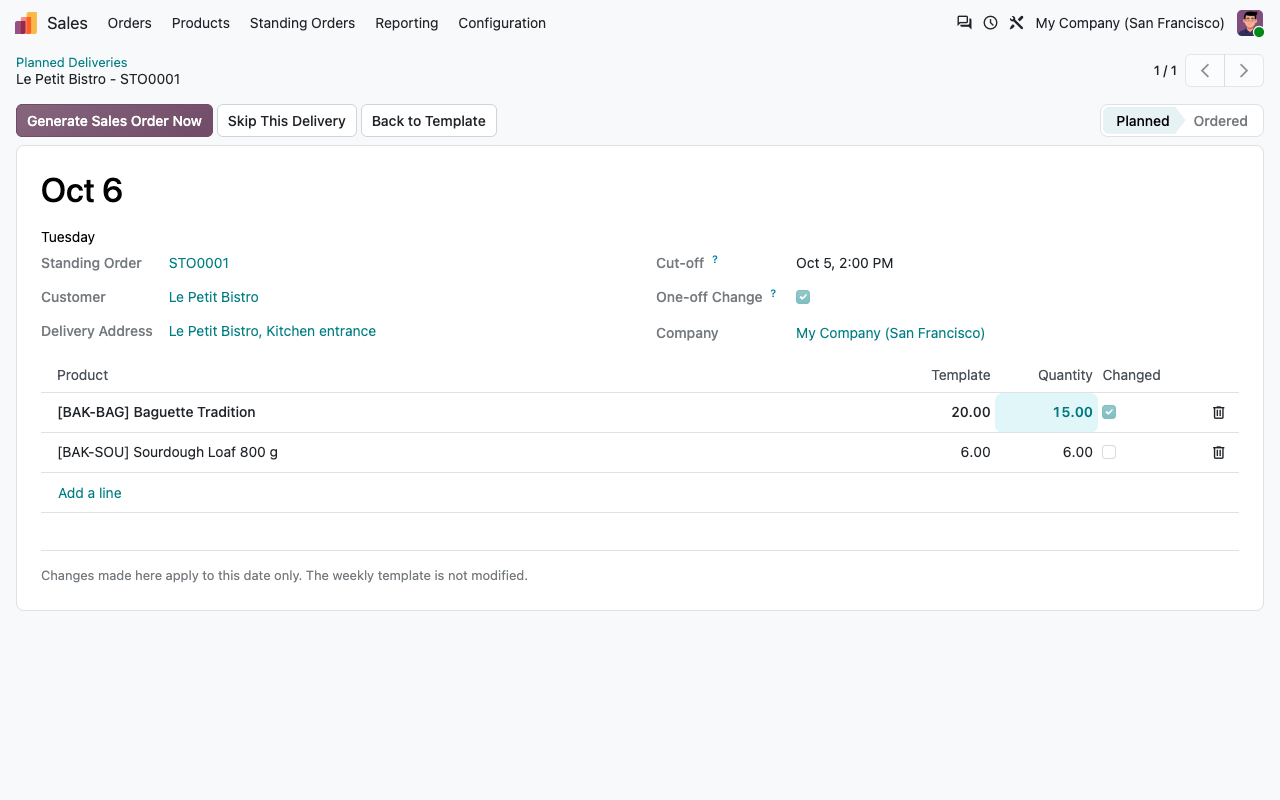
Change a quantity, add a product or remove one for a single delivery. The line is flagged as changed and shown next to the template quantity.
Skip and restore
Skip a delivery in one click, restore it until its sales order is generated. Or put a changed delivery back to the template.
Applied once
The change only affects that date. The following weeks keep the template quantities.
Before the cut-off
Customers can change deliveries until the cut-off, your team until the sales order is generated. After that, you change the sales order as usual.
Sales orders
Confirmed at the cut-off
A scheduled action runs every hour. Once the cut-off of a delivery has passed, its sales order is created and confirmed, and the delivery order follows your usual stock rules.
The right delivery date
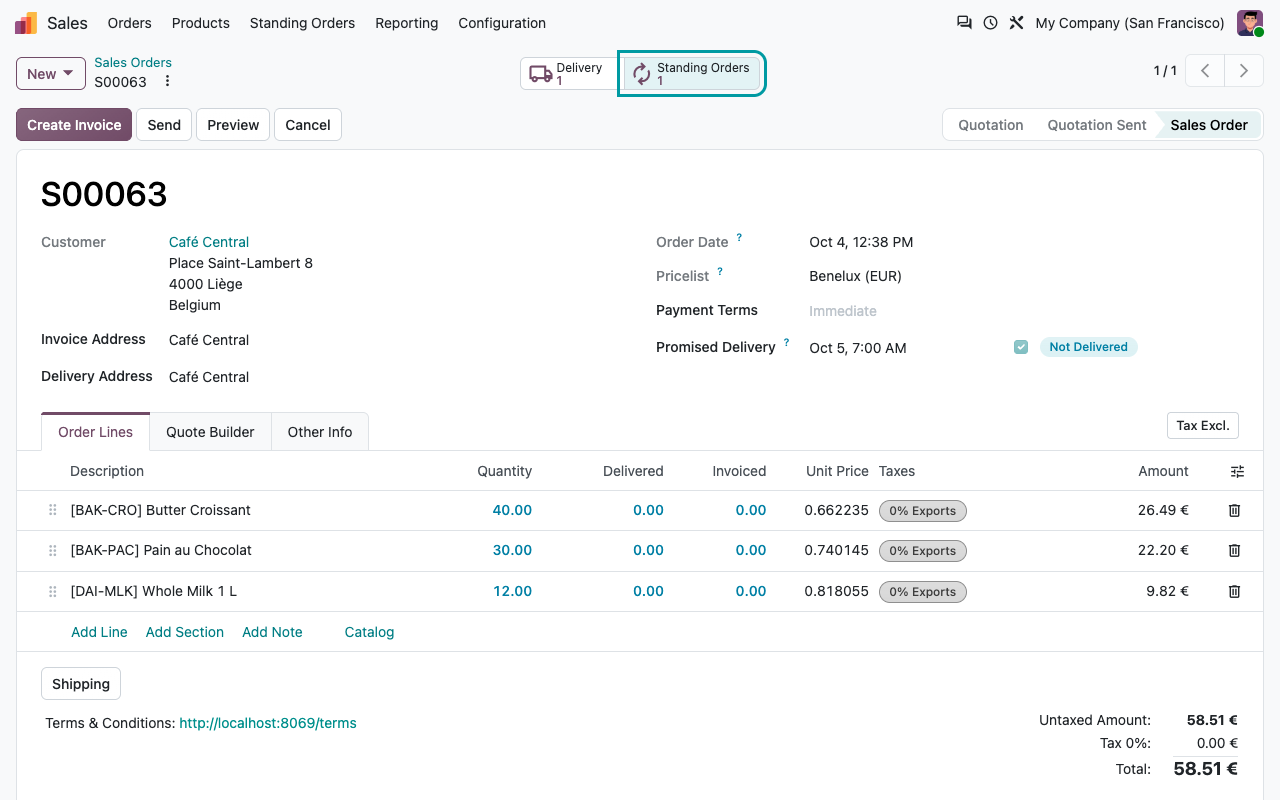
The delivery date of the sales order is the planned date, at the delivery time set in the settings (07:00 by default).
Linked and flagged
Generated orders are flagged "From Standing Order", list their standing orders as source and link back to them. A filter finds them in Sales.
Safe to run again
A delivery is ordered only once, even if the action runs again or is launched by hand. A late delivery joins the order already generated for that customer and day.
Errors do not block the others
If one order cannot be created, the reason is logged on the standing order and on the delivery, and it is retried at the next run.
Customer portal
Your customers adjust, until the cut-off
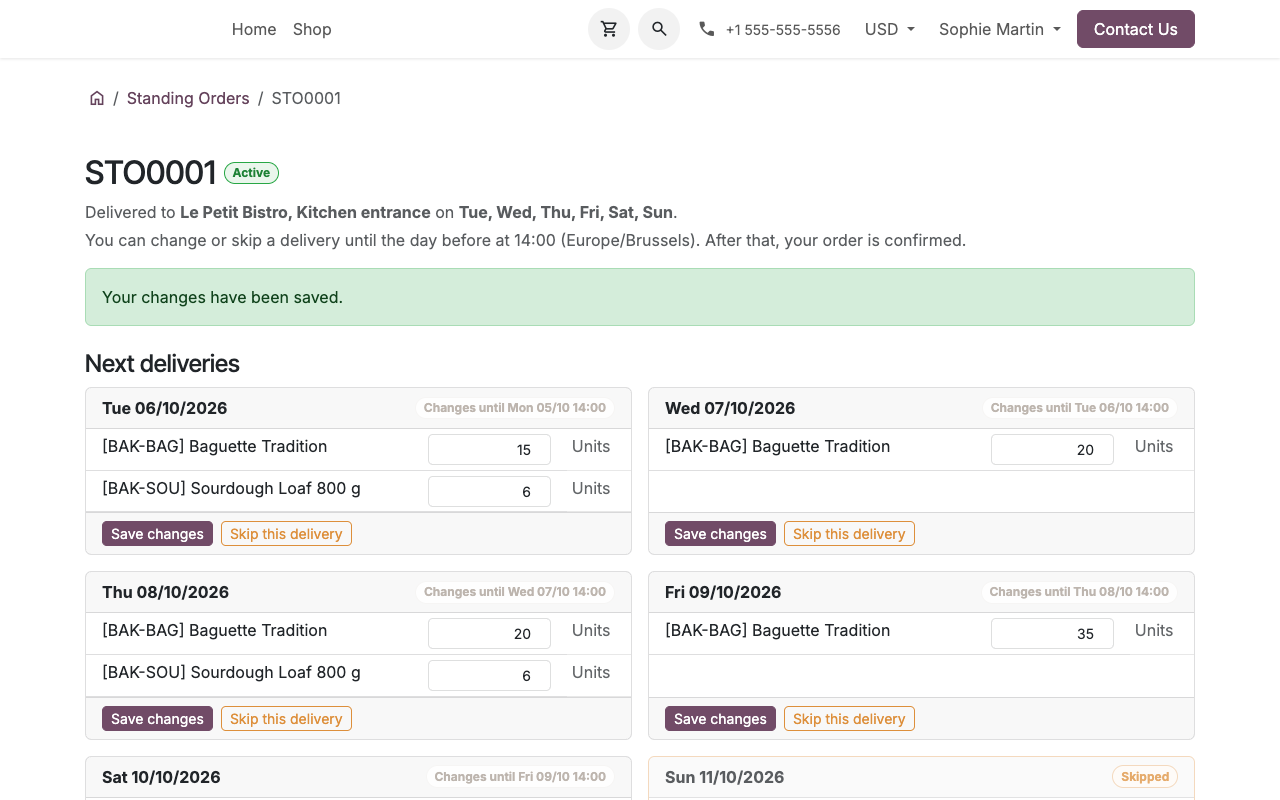
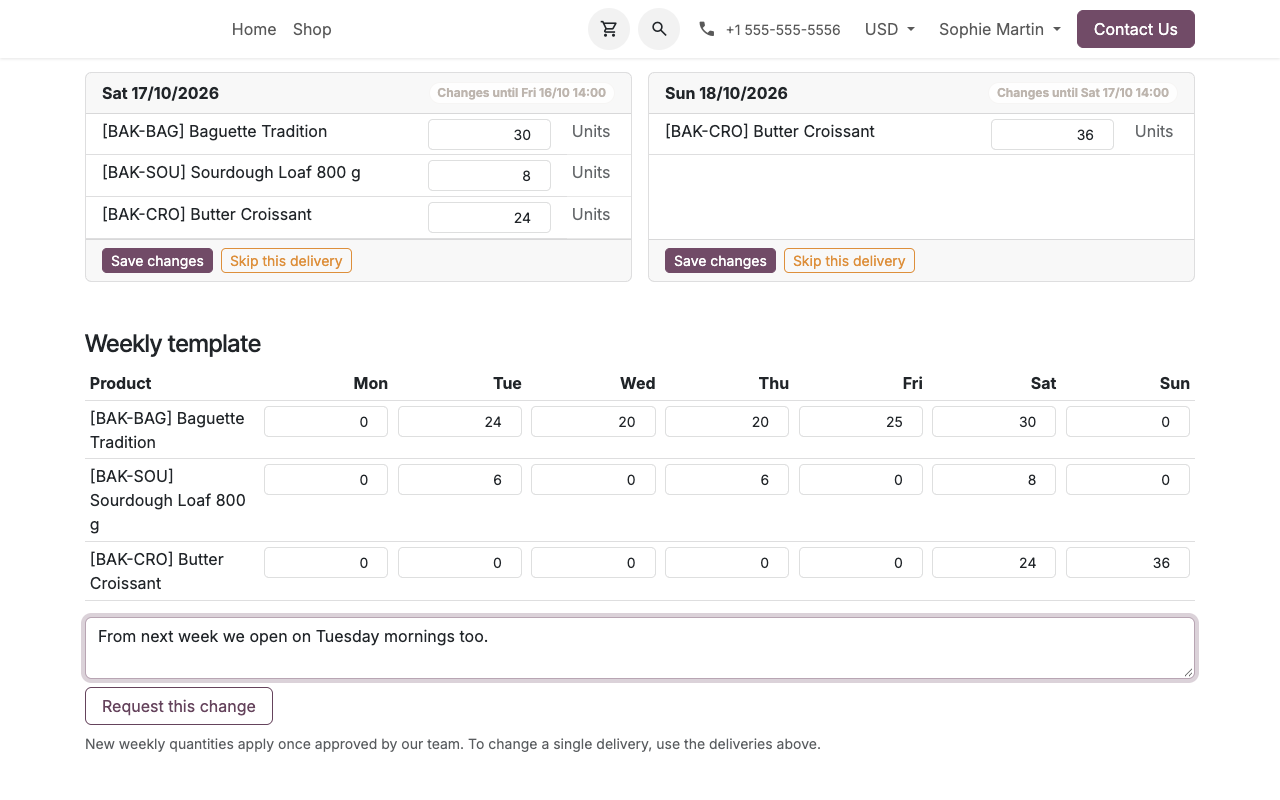
In their portal, customers see their next deliveries and change the quantities or skip a delivery until the cut-off. After the cut-off the delivery is read-only. Each change is logged on the standing order with the customer as author. If you allow it, they can also propose new weekly quantities: a standing orders administrator approves or refuses them.
Next deliveries, editable until the cut-off
Request for new weekly quantities
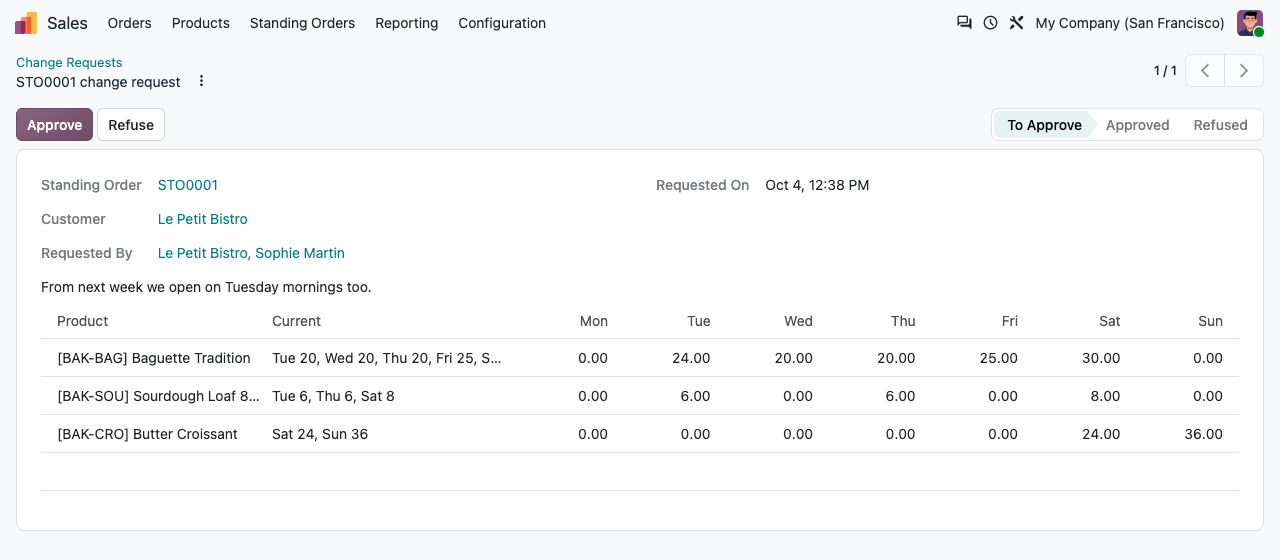
Approval & history
Every change, on the record
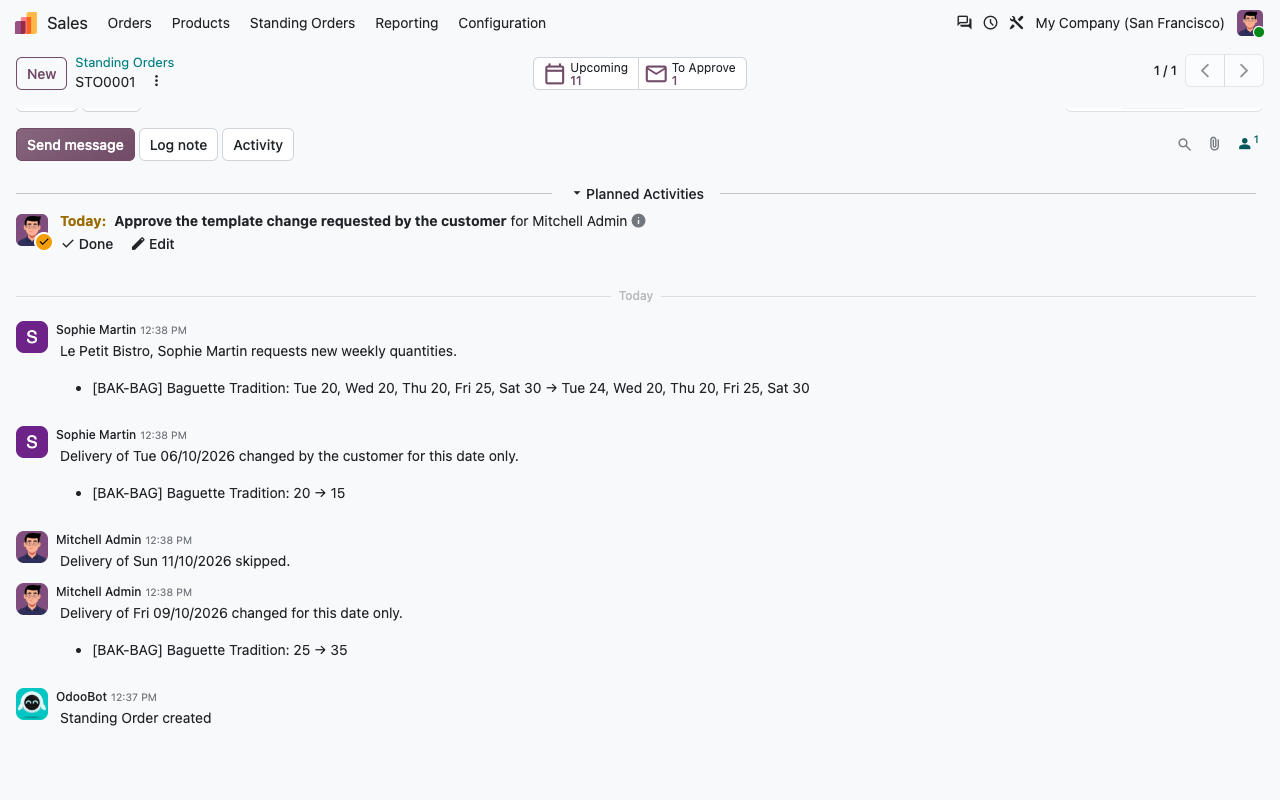
Requests from the portal create an activity for the salesperson. The chatter keeps the history: template changes, one-off changes, skipped deliveries, generated orders and errors.
Template change requested from the portal
Change log on the standing order
Closures & pauses
Holidays and pauses, nothing to undo
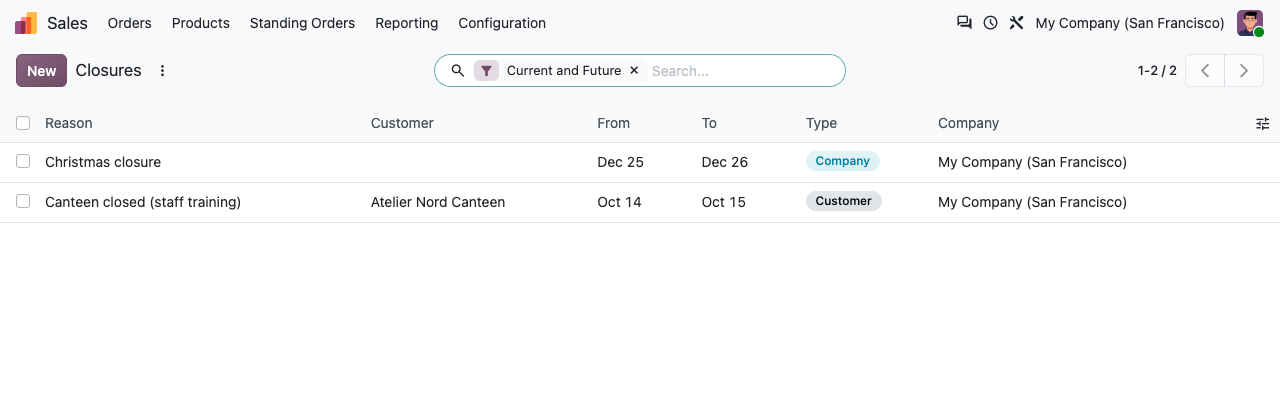
No delivery is planned during a closure or a pause. Deliveries already planned in that period are removed, unless their sales order exists.
Your closures
Bank holidays, annual leave: one date range without a customer, and no delivery is planned for anyone.
Their closures
A school canteen during holidays, a shop under renovation: a date range for a customer or for one of its delivery addresses.
Pause from... until...
Pause a standing order for a period or until further notice. It resumes by itself after the end date of the pause.
End date
Standing orders with an end date close themselves once it has passed.
Production forecast
Know what to bake, days ahead
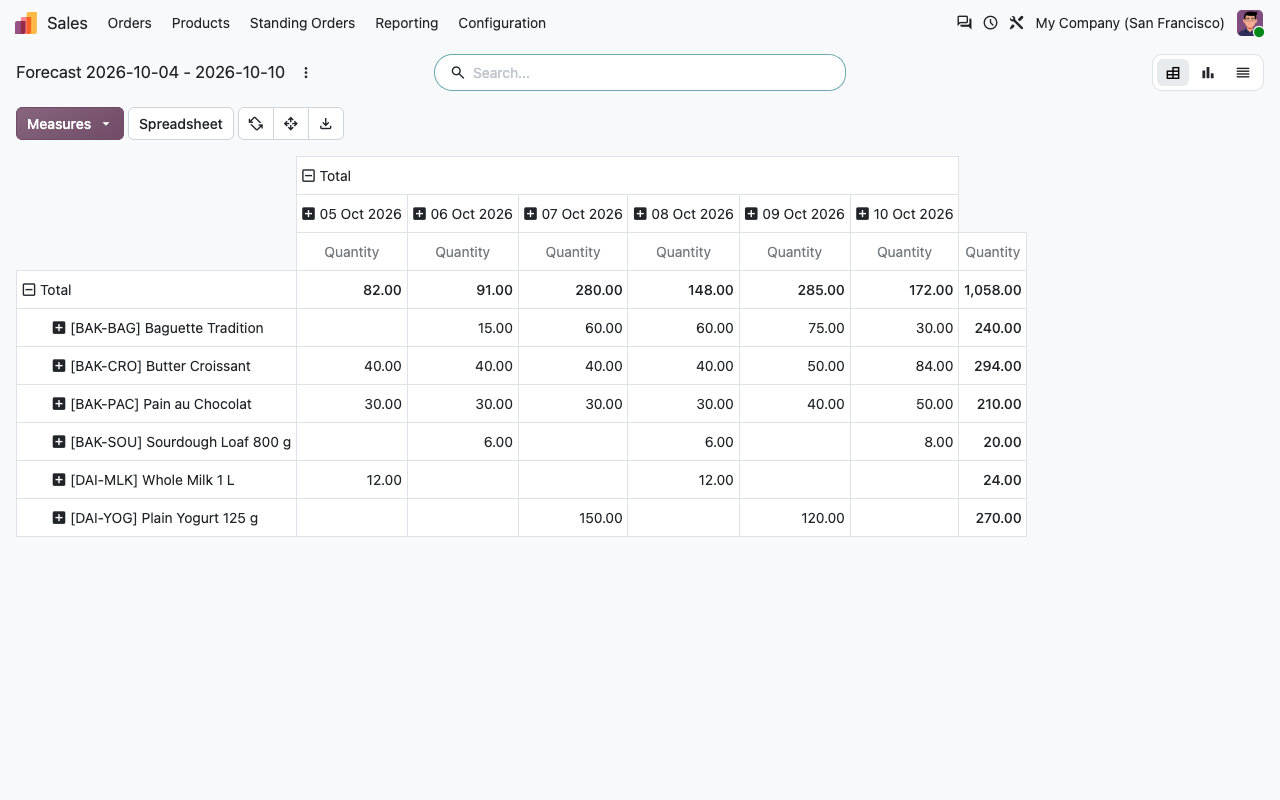
Quantities per product and per day for the next N days, from planned and ordered deliveries, one-off changes included. Pivot, graph and list views, export to a spreadsheet.
Setup
Ready in ten minutes
1
Set your rules
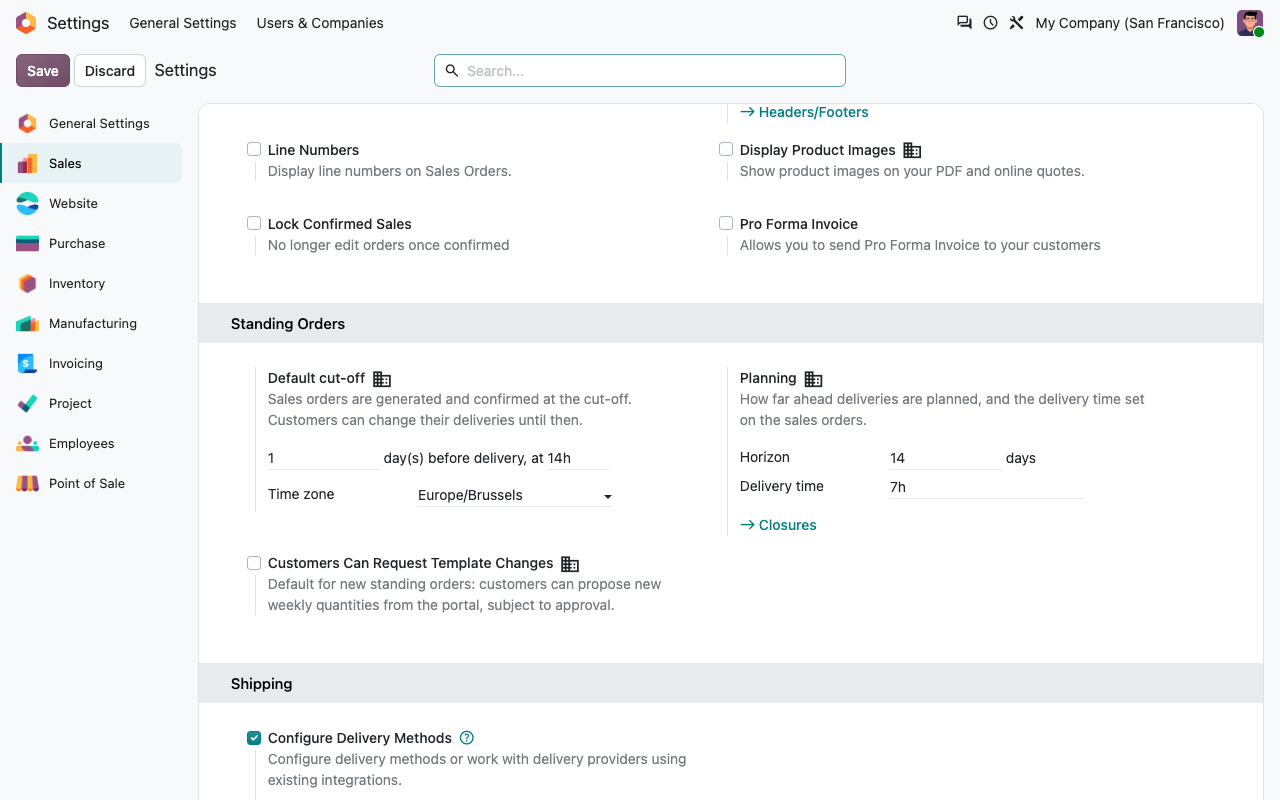
Sales > Configuration > Settings: default cut-off, time zone, planning horizon and delivery time.
2
Create the standing orders
Sales > Standing Orders: customer, delivery address, quantities per weekday, then Activate.
3
Add closures, open the portal
Record your closures and give your customers portal access. Orders are generated from then on.
Under the hood
How it works
FAQ
Good to know
What if the scheduled action did not run at the cut-off?
Due deliveries are generated at the next run, as long as their date has not passed. Otherwise they are marked "Not generated" and logged.
Can customers add products from the portal?
No. They change the quantities of the products of their standing order, skip a delivery or request new weekly quantities. Your team adds new products, to the template or to a single delivery.
Is invoicing included?
Generated sales orders are invoiced like any other order, with your usual invoicing policy.
What about prices?
Prices come from the customer’s pricelist when the order is generated, not when the standing order was created.
A question? A problem? Talk to the people who built it.
We will get back to you within 8 business hours.

Email us directly at
Published by
Nalios — Odoo Gold Partner, Belgium — nalios.be