Testo ProHeat Connector for Field Service
Connect Odoo to testo ProHeat: push installations and work orders to technicians and retrieve combustion certificates.


Présentation du module

/ Odoo 19 · Field Service · Belgium
Testo ProHeat Connector
For Belgian heating installers who issue combustion certificates with testo Pro+. Your Field Service tasks create the testo work orders, and the signed certificate comes back to the task. No double encoding of customers, appliances or technicians.
What it does
Odoo Field Service and testo Pro+, one flow
Your planners work in Odoo, your technicians measure and certify in testo Pro+. This connector carries the customer, the appliance and the work order from one to the other, then files the certificate where your office expects it.
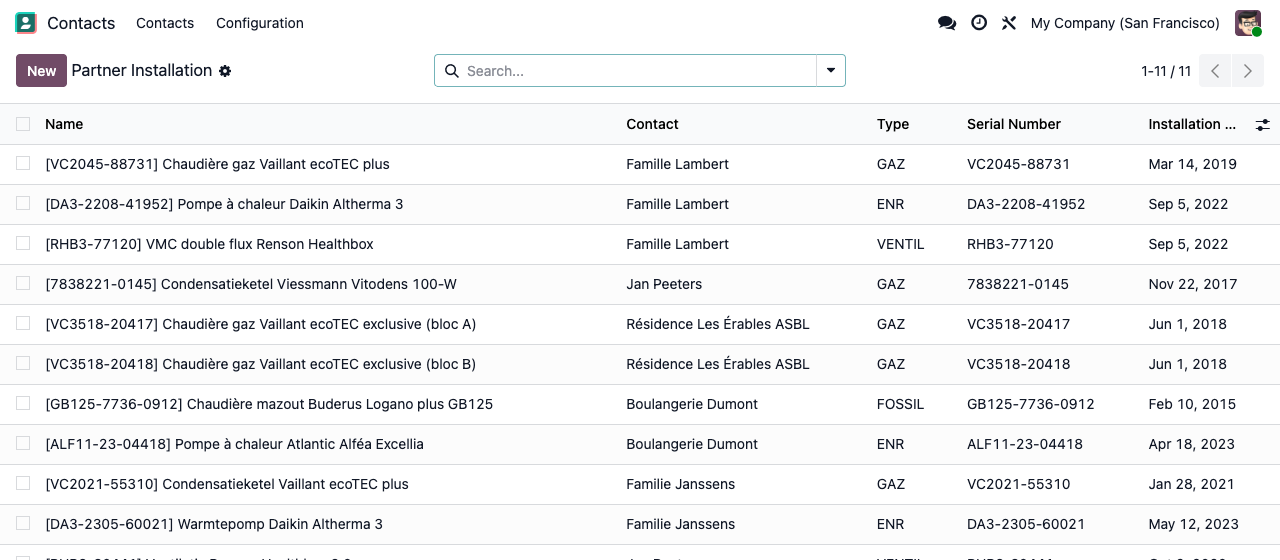
A register of every appliance
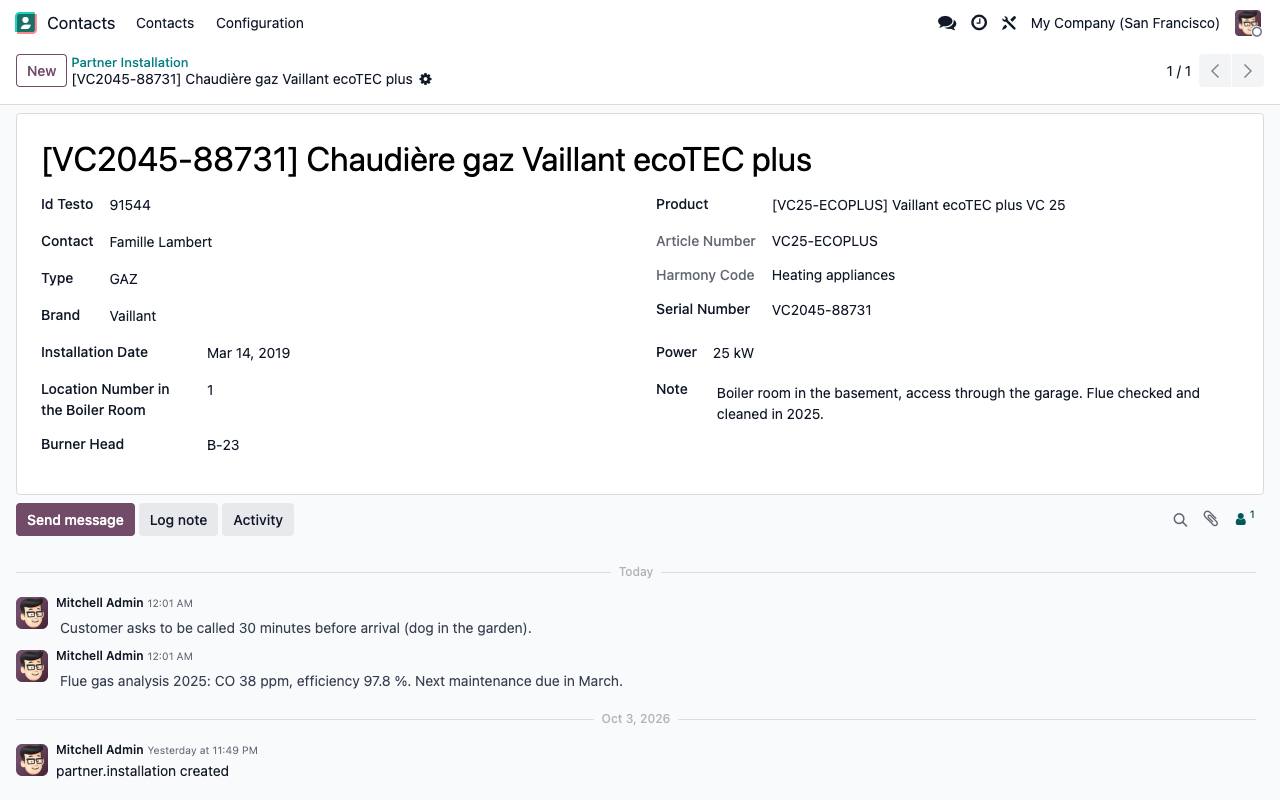
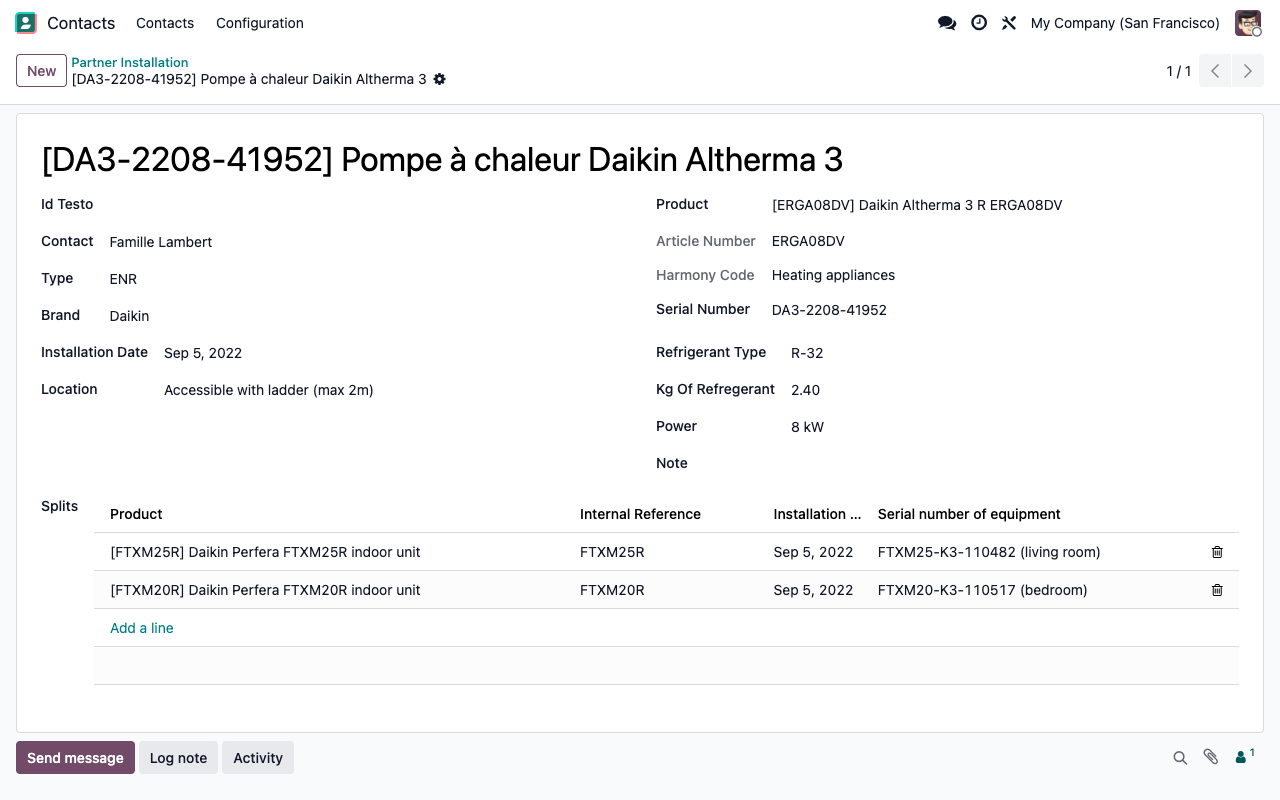
Each customer gets an Installations smart button: boilers, heat pumps, ventilation units, with brand, product, serial number, installation date and power. Fields adapt to the type: burner head and boiler room position for gas and fuel oil, refrigerant and splits for heat pumps.
Work orders created from the task
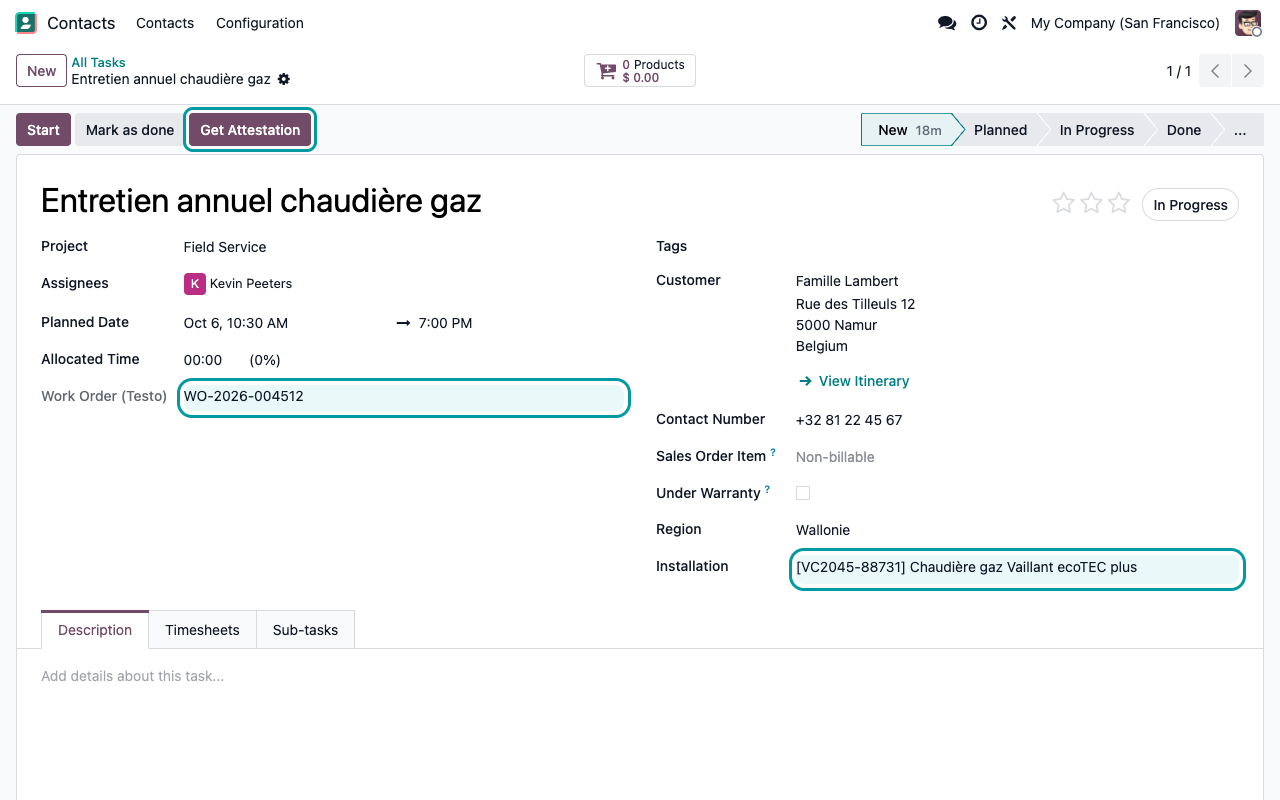
When the technician presses Start on a Field Service task of a synchronised project, Odoo sends the customer, the appliance and the work order to testo, and stores the testo work order number on the task.
Certificate back on the task
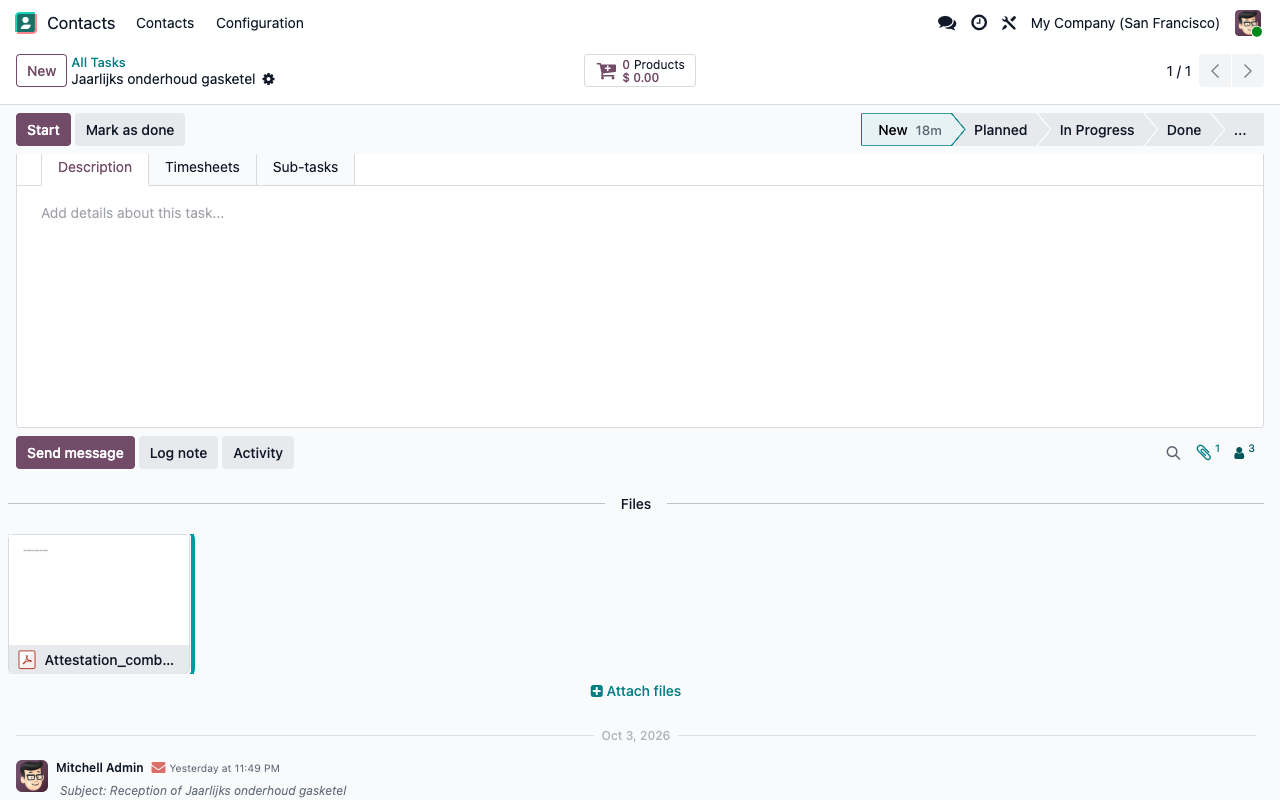
Once the job is closed in testo Pro+, one click on Get Attestation downloads the certificate PDF and attaches it to the task. The button then disappears.
Technicians and their accreditations
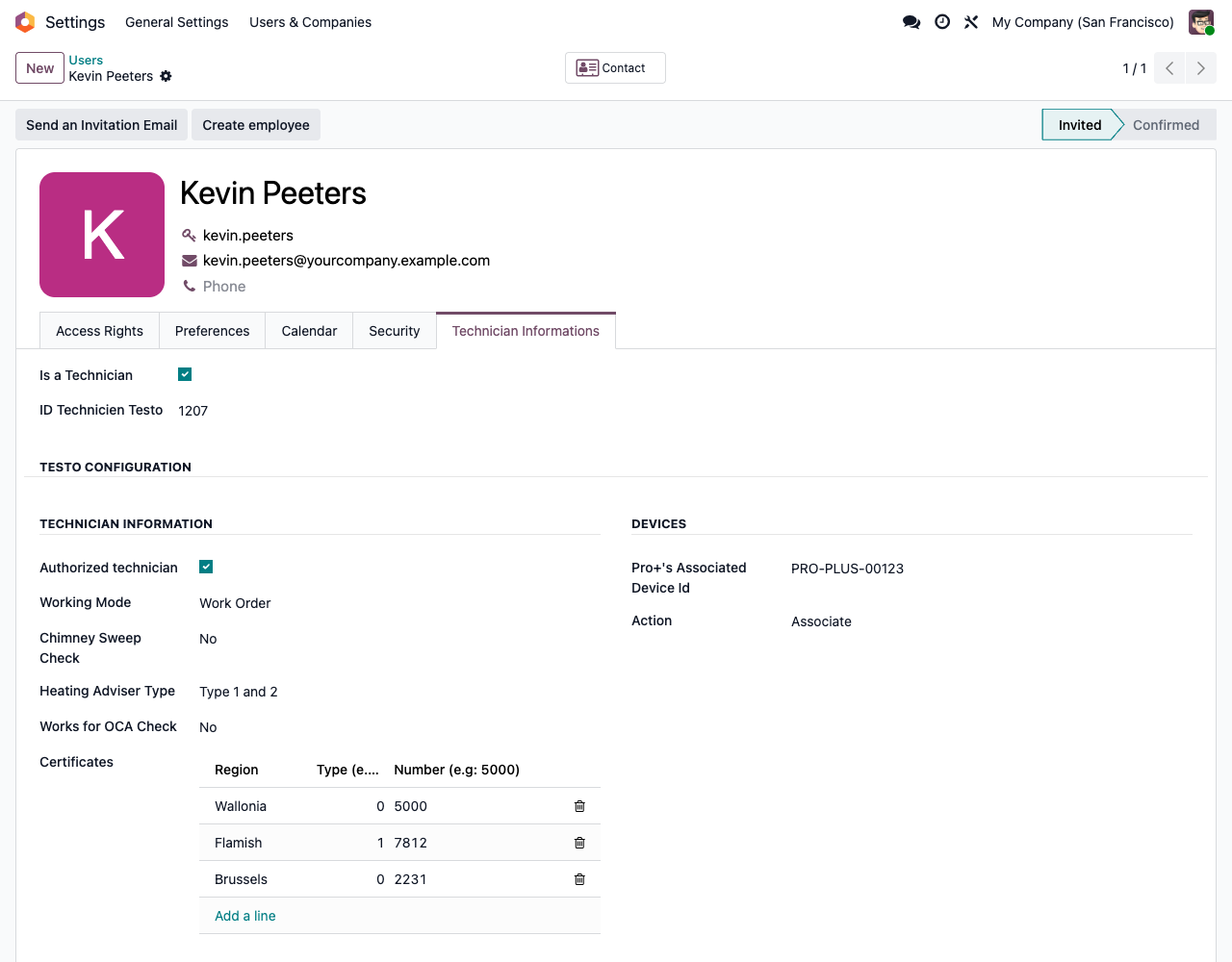
A Technician Informations tab on users holds the testo technician data: authorised technician, heating adviser type, OCA, regional certificate numbers and the Pro+ device. Technicians are created in testo automatically.
Appliance register
The right fields for each appliance
Installations are named after their serial number, followed per customer, and keep their own history in the chatter. Heat pumps list their indoor units (splits) with their own serial numbers.
Gas boiler: product, serial number, burner head, position in the boiler room
Heat pump: refrigerant, quantity, access and indoor units
From planning to certificate
One maintenance visit, end to end
01
The planner creates the Field Service task: customer, gas or fuel oil installation, technician as assignee.
02
On site, the technician presses Start. Odoo pushes the customer, the appliance and the work order to testo.
03
The work order number from testo appears on the task. The job is ready in the technician’s testo Pro+ app.
04
The technician measures and closes the certificate in testo Pro+, in French, Dutch or German depending on the customer’s language.
05
Back in Odoo, Get Attestation downloads the certificate PDF and attaches it to the task.
06
Your office finds the certificate on the task, next to the timesheet and the rest of the job history.
No retyping in testo. No certificate lost in a mailbox.
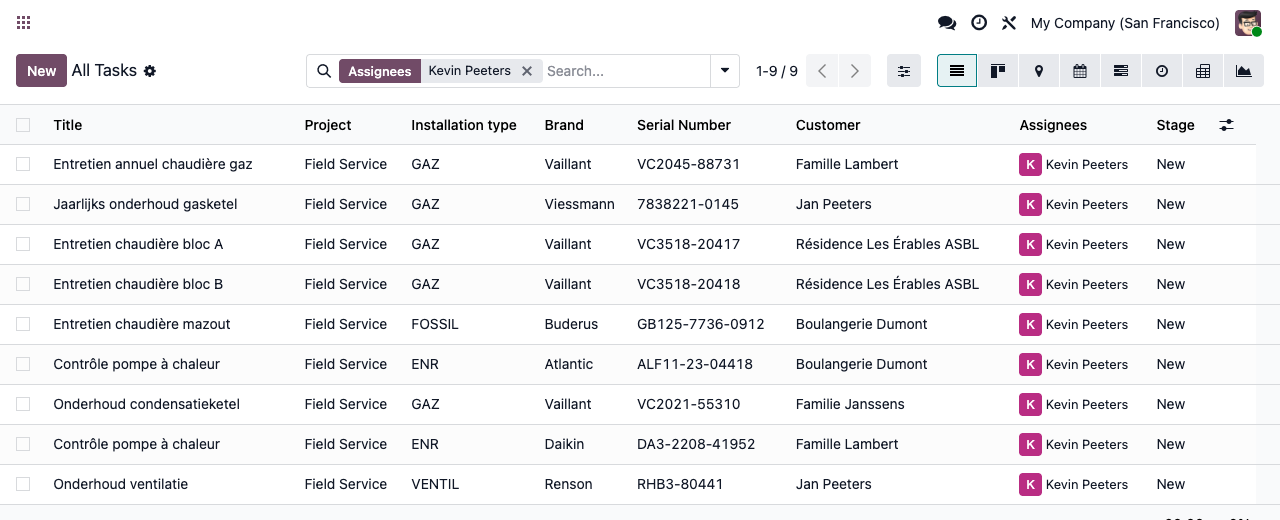
On the task
Work order in, certificate out
Setup
Connected in four steps
1
Connect testo
Install the module on Odoo Enterprise with Field Service. In developer mode, set the system parameters testo_api_url (production: https://api.testocloud.be) and testo_api_token from your testo account.
2
Declare your technicians
On each technician user, tick Is a Technician and fill the Technician Informations tab: accreditations, regional certificate numbers, Pro+ device.
3
Register customers and appliances
Set the Region on each customer and create their installations from the Installations smart button or Contacts > Partner Installation.
4
Synchronise the project
On your Field Service project, tick Testo Synchronize project and choose the certification type: new installation or periodic.
Under the hood
Precise about what is synchronised
Good to know
Before you install
Is the certificate retrieved automatically?
No. Retrieval is manual: click Get Attestation on the task once the job is closed in testo. Only the latest certificate file of the work order is attached.
What happens if testo refuses a request?
Customer push errors are recorded in Settings > Technical > Logging, without a pop-up. If testo returns no work order, the task simply stays without a work order number: check that it appears before the visit.
Why is Start blocked on my task?
A synchronised task needs a region on the customer and a technician as assignee. Odoo tells you which one is missing.
Who can see the installations?
All internal users can read and edit installations: there is no dedicated access group.
Does it change my menus?
Contacts gets a sub-menu with Contacts and Partner Installation. Installing the module also adds stored fields to tracking values, computed once for all existing ones: plan the installation outside business hours on large databases.
Can I test before going live?
Yes. testo_api_url points to the testo staging API by default. Switch it to the production URL when your testo account is ready.
Built for Belgium
This connector follows the testo Pro+ flow of testocloud.be and the Belgian regions. It is not a generic testo integration: other countries and testo products are not covered. Not sure it fits your process? Write to us before you buy, we will tell you honestly.
A question? A problem? Talk to the people who built it.
We will get back to you within 8 business hours.

Email us directly at
Published by
Nalios — Odoo Gold Partner, Belgium — nalios.be